SCHH Computer Club · AI SIG class guide
ChatGPT: the parts you're not using (yet)
A two-hour class on ChatGPT's voice conversations, photo analysis, image creation, connected apps, and tools that carry out tasks for you. Use this page during class and keep it as a reference afterward.
ChatGPT has grown from a simple chatbot into a large and still-growing set of AI tools. No two-hour class can cover all of it, so this one gives a broad overview, then looks more closely at the tools Sun City residents are most likely to find useful. For the full picture, see OpenAI's ChatGPT Learn site and the Further reading list at the end of this page.
Instructor Ron Snyder
Email ron@snyderjr.com · SCHHCC.AI.SIG@gmail.com (AI SIG)
This page schhcc-ai-sig.org/classes/chatgpt
Scan the code with your phone's camera to open this page.
Last updated November 2, 2026. Screens, features, and prices reflect ChatGPT as of that date (web and iPhone app, GPT-6 Astra model).
Plan for the session
Agenda
- 5 minWelcome and getting set up
- 15 minA gentle AI overview
- 15 minA tour of the ChatGPT app, plans, phone vs. computer, and organizing chats
- 5 minAdjusting your settings
- 70 minDemonstrations
- 10 minUsing ChatGPT safely, and questions
On this page
- Before you start
- A gentle AI overview
- Tour of the app
- Organizing your chats
- Adjusting your settings
- Using ChatGPT safely
- Further reading
- Your feedback
Demonstrations
Seventeen demonstrations in eight parts.
Choosing the demonstrations. There are more demonstrations here than two hours allows, so in class we'll take a quick poll and show the ones you most want to see. Every demonstration includes prompts you can copy and try at home.
Getting set up
Before you start
No prior experience is needed, and you do not need a paid plan to attend. Watching is just as welcome as trying along.
- Bring a charged phone, tablet, or laptop if you'd like to try along, and sign in to ChatGPT before class if you can (see Creating an account below). Classroom computers are also available.
- Your screen may look different from the instructor's. Features depend on your plan, your device, and when OpenAI turns them on for your account.
- You won't need to connect any personal accounts during class.
- Using a classroom computer? Sign out of ChatGPT before you leave, and don't save passwords on a shared machine.
Creating an account
You can try ChatGPT without an account, but it's quite limited: your conversations aren't saved, and most of the features in this class aren't available. A free account takes a couple of minutes and is all you need for class and for most of the examples on this page.
- Go to chatgpt.com in a web browser, or install the ChatGPT app from your phone's App Store or Google Play. Make sure the app is the one published by OpenAI; look-alike apps exist.
- Choose Sign up.
- Enter your email address, or continue with an existing Google, Apple, or Microsoft account.
- If you used email, create a password and enter the code ChatGPT sends to your inbox.
- Add your name and birth date when asked.
New accounts start on the Free plan, and no credit card is needed. Once you're signed in, your chats follow you to any device where you use the same account. Consider turning on multi-factor authentication right away (see Adjusting your settings).
Free or paid? Free is fine for this class. Many people who use ChatGPT regularly find that Plus ($20 a month) hits the sweet spot, and Go ($8) suits lighter use. Paid plans are month to month with no long-term commitment, so it's common to try Go or Plus for a month and then cancel, upgrade, or downgrade. See Plans in plain terms for the details.
Back to top ↑About 15 minutes
A gentle AI overview
What ChatGPT is
ChatGPT is an AI assistant made by OpenAI. You can ask it to explain something, help plan an activity, improve a piece of writing, look at a photo, or produce something you can keep, such as a document, an image, or even a website. It runs in a web browser, as a computer app, and as a phone app, with plans ranging from free to Pro.
Artificial intelligence has been studied since the 1950s. What changed recently is a kind of AI called a large language model, and since ChatGPT arrived in late 2022, anyone can use one just by typing or talking in ordinary language.
How a language model produces an answer
A large language model has learned patterns from an enormous amount of text. When you send a message, it works in a simple loop:
- Your words go in. Your message, along with the earlier conversation and anything you've attached, is broken into small pieces called tokens (usually words or parts of words).
- It predicts what comes next. Based on the patterns it learned, the model works out the most likely next piece of text.
- The answer comes out one piece at a time until the response is complete.
Why this matters to you. Because the model produces likely text rather than looking facts up the way a reference book does, two things follow. First, the more context you give it, the better its answer fits your situation. Second, an answer can sound confident and still be wrong. Check anything that matters, such as prices, hours, dosages, or dates, against a trustworthy source.
From language model to agent
The language model is the engine. On its own, though, it can only read text and write text: it can't look anything up, open a file, or send an email. ChatGPT wraps the model in surrounding software, often called a harness (sometimes "scaffolding"), that gives it those abilities. The model does the thinking; the harness does the doing.
The harness typically provides four things:
- Tools. Web search, the files you attach, connected apps such as Gmail, image creation, and in Work mode, the ability to run code and browse websites. The model asks for a tool; the harness runs it and hands back the result.
- A loop. Instead of answering in one pass, the model can take a step, look at the result, and decide what to do next, over and over until the job is done. This is what makes retrying possible: if a search turns up nothing useful or a step fails, the model sees that and tries another approach.
- Self-checking. The model can be asked to review its own draft before you see it, and the harness can run checks of its own, such as testing whether a calculation or piece of code actually works. If the result falls short, it goes back around the loop.
- Memory and permissions. The harness assembles what the model sees each time (your conversation, memory, project files, as described in Part 1) and decides which actions need your approval, such as sending an email.
A model working in a loop like this, using tools toward a goal, is what's usually called an agent. The line isn't sharp: even ordinary Chat uses the harness when it searches the web. What makes something more agent-like is how many steps it takes on its own and how much it can do before checking with you. In ChatGPT, Work mode handles larger, multi-step jobs in this agent-like way, and dot (Demo 17, currently on Pro and some business plans) is a dedicated personal agent that keeps working between conversations. You can watch this happen in Demo 15, where Work turns a cooking video into a recipe card: it carries out several steps in a row, and when it runs into trouble getting at the video, it tries another approach on its own. Agents are the current frontier in AI development. More independence means more done for you, and also more to review, a trade-off that comes up again in Connecting ChatGPT to other services.
Other AI assistants you'll hear about
ChatGPT is the most widely used AI chatbot, with a little over half of all visits to chatbot websites. Google's Gemini accounts for about a quarter and Claude roughly a tenth (Similarweb estimates for September 2026). Others you may come across:
| Assistant | From | Known for |
|---|---|---|
| Gemini | Works with Gmail, Google Docs, and other Google apps | |
| Claude | Anthropic | Long documents, writing, and creating interactive documents and tools |
| Copilot | Microsoft | Built into Windows and Microsoft Office |
| Perplexity | Perplexity | Search-style answers with links to sources |
| Meta AI | Meta | Built into Facebook, Instagram, WhatsApp, and Messenger |
| Grok | xAI | Closely tied to the X (formerly Twitter) platform |
Most of what you learn today carries over to these other assistants.
Back to top ↑About 15 minutes
A tour of the ChatGPT app
The layout is much the same in a web browser, the computer app, and the phone app. On a phone, the sidebar is tucked behind the menu button in the top corner.
- 1New chat and search. Start a fresh conversation, or use the magnifying glass to find an old one.
- 2Tools. The list in the sidebar opens ChatGPT's other features: Images (pictures you've created), Scheduled (tasks set to run later, Demo 14), Library (files and images you've added or made), Plugins (connecting apps such as Gmail, and skills; Demos 4 and 10), Health (Demo 12), Codex (for writing code), and Explore, which shows more. Depending on your plan, you may also see items such as Finances or Your dot. The list changes as features are added.
- 3Projects and Recents. Your saved work. Projects group related chats; Recents lists everything else, newest first. See Organizing your chats.
- 4Chat or Work. The switch at the top chooses between Chat for conversation and Work for larger tasks (explained below).
- 5Message box. Type your prompt here and press Enter (or the send arrow) to send it.
- 6The + button. Attach photos and files, take a picture on a phone, or create an image.
- 7Model or Think. In Work, this shows which model will answer and how much effort it puts in. In Chat, you may see a Think button instead, which asks for a slower, more careful answer. The defaults are fine for everyday use.
- 8Microphone. Dictate your message instead of typing it. ChatGPT still answers in writing.
- 9Voice. Have a spoken, back-and-forth conversation, and interrupt whenever you like.
- 10Shortcuts. Choose project puts the work in a Project, Files adds documents, and Plugins brings a connected app into this chat.
Chat, Work, dot, and Codex: what's the difference?
| Use | When you want to… | Example |
|---|---|---|
| Chat | Ask a question, talk through an idea, or improve a draft | "Suggest day trips from Sun City" |
| Work | Hand over a larger task and get back a finished result to review | "Build a season schedule for my tennis team as a PDF" |
| dot | Give an assistant an ongoing responsibility it keeps working on between conversations | "Watch for important AI news and tell me when something changes" |
| Codex | Have AI write, fix, or run computer code for you. It's built for programmers, but you can describe what you want in plain English | "Build a simple web page where club members can sign up for the next meeting" |
We won't demonstrate Codex today, but you may see it in ChatGPT or hear about it. Every plan includes some Codex use, with more on paid plans.
You'll also see Plugins, which connect ChatGPT to other services such as Gmail, and Sites, which creates and publishes a website from your material.
Plans in plain terms
Everyone in the Sun City area can choose from all four plans below, and the U.S.-only features shown today, Health and Finances, are included on every plan, even Free.
Chat, photo questions, image creation, Voice, Health, and Finances, with lower limits. May show ads.
More messages, uploads, and images than Free, and a longer memory. May show ads.
Much higher limits, a more careful "thinking" model, deeper research, Voice in the computer app, and no ads.
The highest limits, in $100, $200, and $500 tiers. Mostly used by professionals who rely heavily on Codex. Needed for dot. No ads.
Which plan fits? Free is a good way to try ChatGPT and works fine for occasional use. People who use it regularly usually find that Go or Plus fits best: Go for more everyday chatting, Plus for more of the tools shown today. Paid plans are billed monthly, so you can start with Free and change later.
Do you need Pro? Probably not. Pro is used mostly by professionals who rely heavily on Codex to write software and do other technical work. Codex can also carry out multi-step tasks that have nothing to do with code, but most people will find that ChatGPT's Work mode handles those well.
What you'll actually pay here. The prices above don't include South Carolina sales tax, which applies to online subscriptions. That adds about 7% if your home is on the Beaufort County side of Sun City and about 8% on the Jasper County side, so Plus comes to roughly $21.40 to $21.60 a month. Your receipt shows the exact amount.
Every plan has usage limits, even paid ones, and a new feature sometimes reaches one person's account a few weeks before another's. Prices as of October 2026; check the official plan comparison before subscribing.
Phone or computer?
| Task | On a phone | On a computer |
|---|---|---|
| Typing questions and follow-ups | Works well | Works well, and easier for long prompts |
| Voice conversations | Available on all plans, and the most natural way to use Voice | Computer app requires Plus or higher |
| Showing ChatGPT things with the camera, or sharing your screen, during Voice | iPhone and Android, Go or higher, in Advanced voice | Not available; use screenshots or appshots instead |
| Photos | Take a picture with the camera and ask about it right away | Upload photos already on your computer |
| Work, Projects, and Sites | Available, but a small screen makes reviewing results harder | The better choice for larger tasks and anything involving many files |
| Health (adults 18 and older) | iPhone app; not yet on Android | Web browser |
| Finances | iPhone and Android apps | Web browser |
Your conversations follow you: sign in with the same account and you'll find the same chats on every device.
Back to top ↑About 2 minutes
Organizing your chats
Every conversation is saved, and after a few weeks the list gets long. The sidebar sorts your chats into three places:
- Projects are folders for related chats, along with any files and instructions that go with them, such as "Florida trip" or "Tennis team." Chats in a project share that background, so you don't have to explain it again each time.
- Pinned chats stay near the top so the ones you return to often are easy to find.
- Recents holds everything else, newest first. Click the word Recents to collapse or expand the list.
The chat menu
Each chat has its own menu. In a web browser, point at a chat in the sidebar and click the three dots (⋯) that appear beside it. In the phone app, press and hold the chat. From the menu you can:
- Rename it, so you can find it later. ChatGPT's automatic titles aren't always helpful.
- Pin it, to keep it near the top.
- Move to project, to file it with related chats.
- Share it by creating a link. Anyone with the link can read the conversation, so check it first. You can remove shared links later under Settings, Data controls.
- Lock it, which is new. A locked chat moves to a separate Locked Chats section and opens only with a four-digit PIN, or Face ID or Touch ID, so others using your device can't see it. It still follows your training setting, and forgetting and resetting the PIN deletes your locked chats. See the note at the end of Adjusting your settings.
- Delete it. This can't be undone.
Looking for an old conversation? The magnifying glass at the top of the sidebar searches all your chats.
Back to top ↑About 5 minutes
Adjusting your settings
A few minutes in Settings lets you decide how ChatGPT uses your information and how it answers you. To open them on a computer, click your name or picture at the bottom of the sidebar and choose Settings. On a phone, open the menu, tap your name, and you'll see the same choices. Menu names shift from time to time, so look for the closest match.
Settings worth a look
| Setting | Where to find it | What to consider |
|---|---|---|
| Improve the model for everyone | Data controls | When this is on, OpenAI may use your conversations, and files you share in them, to train future models. Turning it off keeps your chats out of training. Your chat history stays either way, so nothing is lost. It's your choice; neither setting is wrong. |
| Memory | Personalization | ChatGPT can remember details you mention, such as where you live, and use them in later chats. Open Manage memories to see what it has saved and delete anything you don't want kept, or turn memory off entirely. You can also say "Forget that" in a chat. |
| Custom instructions | Personalization | Tell ChatGPT about yourself and how you like answers, once, instead of repeating it in every chat. It applies to new conversations. A starter version you can copy and adjust is below. |
| Multi-factor authentication | Security | Adds a code from your phone when you sign in, so a stolen password alone can't get into your account. Strongly recommended, especially once you connect Gmail or health records. The same page lets you sign out of every device at once. |
| Connected apps and plugins | Apps or Plugins | Lists every service you've connected, such as Gmail. Disconnect anything you no longer use. |
| Ad controls (Free and Go) | Ad controls | Turn off ad personalization so ads aren't chosen based on your past chats, and clear your ad data. OpenAI says it does not share your conversations with advertisers. |
| Shared links | Data controls | If you've ever shared a chat by link, you can see those links here and delete any you no longer want public. |
| Voice | Voice or Speech | Pick the voice ChatGPT uses when it talks to you. Try a few; the choice is purely personal. |
Starter custom instructions
Custom instructions usually have two boxes: one about you, and one about how you'd like ChatGPT to respond. Here's a starting point for each. Copy them into Settings, Personalization, Custom instructions.
Show the starter instructions for how ChatGPT should respond
Use clear, everyday language and a friendly, respectful tone. Be patient, but don't talk down to me.

Start with a direct answer. Keep most replies short, and offer more detail if I want it.

Avoid jargon and unexplained abbreviations. When a technical term is needed, explain it simply.

When explaining how to do something:
- Use short, numbered steps.
- Tell me exactly what to click, tap, or look for.
- For longer tasks, give me a few steps at a time and let me try them before continuing.
- If the steps depend on my device or app, ask what I'm using first.

Use familiar examples when they help. When there are several options, recommend a sensible starting point and briefly say why.

If my request is unclear, ask one simple question at a time, but don't ask questions when you can already give a useful answer.

Be honest when you're unsure. Don't make up facts, and don't just agree with me if something I say seems wrong. Correct me gently and clearly.

Help me learn as we go. Assume I'm capable, but don't assume I already know how AI or other technology works.
I'm retired and live in Sun City Hilton Head, in the Bluffton area of South Carolina. Use U.S. units and Eastern time. When something depends on current prices, hours, or rules, tell me and say where to check.
An alternative for experienced users. If you're already comfortable with technology and want a more demanding, no-nonsense assistant, here's the instructor's own version. It asks for answers without hand-holding, for sources on important facts, and for writing help that sounds like you rather than like AI. It's close to the 1,500-character limit for that box, so trim something before adding to it.
Show the experienced-user instructions
Be direct, clear, and intellectually honest. Lead with the answer, then explain as needed. Keep routine answers concise; go deeper when warranted.

Use plain language, concrete examples, and a conversational tone. Avoid flattery, filler, jargon, and repetitive summaries. Don't oversimplify technical subjects or assume I need beginner instructions.

Prioritize accuracy over agreement. Challenge flawed assumptions and explain meaningful risks and tradeoffs. Distinguish facts from inference and uncertainty. Say when you don't know.

Cite reliable sources for non-trivial factual claims, especially those that are consequential, disputed, surprising, or time-sensitive. Prefer primary sources and ensure citations support the claims. Apply Carl Sagan's standard: "Extraordinary claims require extraordinary evidence." Match confidence to evidence; don't present speculation as fact.

Use relevant prior context without repeating it unnecessarily. Ask questions when answers would materially affect the result; otherwise, make reasonable assumptions and proceed. Carry requested work through to completion.

Make drafts ready to use. Preserve my intent and natural voice while improving clarity, organization, and tone. Avoid common AI writing habits, including overused em dashes, stock phrases, formulaic transitions, inflated language, and repetitive conclusions. Favor specific, natural wording that sounds like something I would write.
Make it yours. These are a starting point, not a rulebook. Change anything that doesn't fit: if you like longer answers, delete "Keep most replies short"; if you're comfortable with technology, drop the last line or start from the experienced-user version; add your interests, such as golf, gardening, or family history, so suggestions fit you better. The instructions apply to new chats, so start a fresh chat to see the effect. A quick test is to ask something like "How do I take a screenshot?" and see whether the answer comes out the way you want. If not, adjust a line and try again.
Two privacy tools that aren't settings.
Temporary Chat is for a one-off conversation you don't want kept. Start one from the top of a new chat. Temporary chats don't appear in your history, aren't used for training, and don't add to memory. OpenAI may keep a copy for up to 30 days for safety reviews.
Lock chat is for a conversation you do want to keep but don't want others to see, such as one about your health or money on a computer or tablet you share at home. Lock it from the chat's options menu with a four-digit PIN, or with Face ID or Touch ID where your device supports it. Locked chats move to their own Locked Chats section and disappear from your regular history and search. Locking hides a chat from people using your device; it doesn't change how OpenAI stores it or whether it's used for training, which "Improve the model for everyone" still controls. Remember your PIN: resetting it permanently deletes your locked chats. Lock chat began rolling out on October 20, 2026, so it may not appear on your account yet.
About 70 minutes
Demonstrations
The demonstrations are grouped into eight parts. Each one shows what a feature does, what it needs, and prompts you can copy. We won't have time for all of them in class, so we'll vote on which to see. The rest are written so you can try them at home on your own.
Demonstrations · Part 1 of 8
Getting better answers
The habits in this part make every other feature work better. First, a word you'll hear throughout the class: a prompt is the question or instruction you type or say to ChatGPT.
Give details up front
ChatGPT isn't a search engine, so a few keywords like "day trips Hilton Head" waste most of what it can do. Write the way you'd ask a knowledgeable friend: who it's for, what you're trying to accomplish, what matters to you, what to avoid, and what you'd like back, such as a short list, a table, or a one-page plan. Context matters. The more it knows about your situation, the more the answer fits you instead of everyone.
Treat it as a conversation
The first answer is a starting point, not the final word. Follow up: ask it to narrow things down, change the format, or explain something further. Challenge it with "What are you assuming?" or "How sure are you?" Correct it when it's wrong. A few follow-ups usually improve the result more than any feature does.
A prompt is more than what you type
When you send a message, ChatGPT receives more than the words in the box. Behind the scenes, it adds other information to what you typed, and all of it shapes the answer:
- What you type in the message box
- Files and photos you attach
- The conversation so far in this chat
- Memory and custom instructions from your settings
- Project files and instructions, when you're working in a project (Demo 3)
- Search results and connected apps, when it uses them
- Skills, when you call one with / or ChatGPT picks one for the task (Demo 10)
This is why two people can ask the same question and get different answers, and why starting a new chat can help when a conversation drifts off track. Attachments are especially powerful: ChatGPT reads the document or photo along with your question. You'll see that in the second example below, and again in the photo demonstrations.
Better answers through detail and follow-ups
- Plan: Free
- Best on: Phone or computer
- Mode: Chat
- Try along
Shows how a detailed first message and a few follow-ups turn a generic answer into one that fits you, and how attaching a document changes what ChatGPT can do.
Example A: plan a day trip (try along)
Compare these two ways of starting. The first is how most people type into a search box. The second gives ChatGPT something to work with.
day trips near Hilton Head
My wife and I live in Sun City Hilton Head and want a day trip next month. We enjoy history, scenic places, and a good lunch. We prefer easy walking, want to drive no more than 90 minutes each way, and would like to be home by dinner. Suggest three options.
In class, type the detailed prompt yourself. The instructor will take the conversation further on screen with follow-ups like these:
-
Before narrowing the choices, ask me three questions that would help you tailor your suggestions.
-
Compare your top three choices in a table showing approximate driving time, main attractions, amount of walking, and estimated cost. Explain what the cost estimate includes.
-
What assumptions are you making? Check current hours, admission prices, and any closures using official sources. Include links and tell me anything you couldn't verify.
-
Using the option we choose, make a relaxed, one-page itinerary with a lunch break, a rainy-day alternative, and a short checklist of things to bring.
Example B: ask about a document (watch)
Attach a document with the + button and ChatGPT reads it along with your question, so its answer comes from your document instead of general knowledge. A timely example: Medicare open enrollment runs from October 15 to December 7, and Medicare's official handbook, Medicare & You 2027, is a free 128-page PDF from Medicare.gov. Download it, attach it, and ask.
I've attached the Medicare & You 2027 handbook. In plain English, what are the main differences between Original Medicare and Medicare Advantage, and what should I think about when choosing between them? Give the page number for each point so I can check it.
What can I change during open enrollment, and what happens if I miss the December 7 deadline? Where in the handbook can I find free, unbiased help with my choices? Include page numbers.
Asking for page numbers lets you check the answer against the original, which matters with a document this long. The AI SIG has a step-by-step handout that uses the same handbook with Google's Gemini Notebook, if you'd like to compare the two tools.
Try it at home with your own plan's notice. Every fall, Medicare plans mail an Annual Notice of Change describing next year's costs and coverage. It's a good document to ask about, because it's specific to you. Cover your name, Medicare number, and member ID before uploading, then try:
I've attached my Medicare plan's Annual Notice of Change for next year. Summarize what's changing in plain English, especially costs for doctor visits, specialists, and prescriptions. Give the page number for each change. Which changes would matter most for someone who sees a specialist every month and takes three prescriptions, and what should I ask the plan or a free Medicare counselor before December 7?
Tip: let ChatGPT write the prompt
- Plan: Free
- Best on: Phone or computer
- Mode: Chat
Shows how a few plain-English sentences can produce the long, expert prompt a demanding task needs.
Better prompts get better answers, but some jobs call for a prompt that's long, takes time to write, and assumes expertise you may not have. The photo restoration prompts in Demo 9 are a good example: they spell out what to repair, what must never change, and how to handle cropping, grain, and color, in the language a photo conservator would use. Few of us could write that from scratch.
You don't have to. Describe what you want in your own words and ask ChatGPT to write the detailed prompt for you. It knows the vocabulary and the usual pitfalls, and it can ask you questions to fill in what it doesn't know.
I want to restore a faded, scratched family photo from the 1940s, but I don't know the technical terms. Before writing anything, ask me a few questions about what I want. Then write a detailed prompt I can give ChatGPT's image tool, organized into what to fix, what must not change, and how to handle cropping and color.
Try the prompt it writes on your photo. If the result isn't right, say what went wrong and ask for a better prompt. It often takes a round or two.
I tried your prompt. The scratches are gone, but my grandmother's face looks smoother and younger than in the original. Revise the prompt to prevent that, and tell me what you changed.
Help me write a prompt for [describe the task]. Ask me questions about my goal, what matters most, and what to avoid, then write the prompt. Keep it in plain English so I can understand and adjust it.
Once a prompt works the way you want, save it. If it's a job you'll repeat, you can turn the proven prompt into a reusable skill, so you never have to paste it again. Demo 10 shows how.
Back to top ↑Ask questions about your own documents
- Plan: All plans; Free allows fewer files
- Best on: Web browser on a computer
- Mode: Chat, in a project
Shows how a project keeps a set of documents on hand, so every chat in it can answer from them.
The example above attached one document to one chat. A project goes further: add documents once, and every chat inside the project can draw on them. In class we'll download a few documents from the members-only SCHH community library, such as community rules and amenity guides, add them to a project, and ask the kind of questions residents ask every day.
Set up a project
These steps are for ChatGPT in a web browser, which is what we'll use in class.
- Click Projects in the sidebar, then New, and give it a name, such as "Sun City reference."
- Add your documents. Open the project's Sources and upload the files from your computer, or drag a file into any chat inside the project. PDFs, Word files, and spreadsheets all work.
- Optionally, add instructions in the project's settings. These apply to every chat in the project. An example is below.
- Start a chat from inside the project and ask away.
Answer from the documents in this project. For each answer, name the document and the section or page it came from. If the documents don't cover the question, say so plainly instead of answering from general knowledge.
Browser or computer app? Projects work a little differently in each, at least for now. In the ChatGPT computer app, a project can draw on documents in a folder on your computer, but you can't currently add custom instructions to it. In a web browser you can add instructions, but a project tied to a folder on your computer isn't available there; upload the files instead. For this example, use the browser.
Questions to try
Can I park a camper in my driveway overnight before a trip? If so, for how long, and do I need to tell anyone?
I want to replace the shrubs along the front of my house. What approval do I need first, which form do I use, and how long does the review usually take?
My daughter and two grandchildren are visiting for a week. Summarize what they can use on their own, what requires me to be with them, and any guest passes or fees, as a short checklist.
Answers are only as current as the files you uploaded. When the library posts a new version of a document, replace the old one in your project. And check the cited section before acting on anything important.
Before you upload. Your project is private to you unless you share it, and its files follow your "Improve the model for everyone" setting. Still, documents from a members-only library were posted for residents, so use your judgment about copying them into an outside service, and don't upload anything that lists other residents' names, addresses, or phone numbers, such as a directory.
Projects work for any collection you consult often: a car's owner's manual and service records, appliance manuals, insurance policies, or a club's bylaws and minutes.
Back to top ↑Demonstrations · Part 2 of 8
Connecting ChatGPT to other services
On its own, ChatGPT only knows what you type or attach. Connect it to other services, such as your email, calendar, health records, or bank accounts, and it can look things up in them and take action for you: find a message, add an appointment, draft a reply, track your spending. This shift from an assistant that answers to one that works on your behalf, often called an AI agent, is where AI development is heading right now. The Gmail demonstration below is the first of several that use these connections.
The more a connection lets ChatGPT see and do, the more useful it becomes, and the more there is to protect. Some connections carry little risk, and others deserve real thought. None is risk-free.
| Kind of connection | What ChatGPT can see or do | Risk to weigh |
|---|---|---|
| Maps, recipes, shopping, or hiking apps | Look up places, build lists, suggest routes | Lower: little personal information involved |
| Calendar | See your appointments and add new ones | Moderate: reveals where you'll be and when |
| Email and cloud documents | Read messages and files, draft replies, and send with your OK | Moderate to higher: private correspondence, and it can act in your name |
| Health records and devices | Read lab results, medications, conditions, and activity data | Higher: your full medical history in one more place |
| Bank and investment accounts | Read balances, transactions, and investments (it can't move money) | Higher: a complete picture of your finances |
Questions to ask before connecting anything
- What can it see, and can it act, or only read?
- Will it ask me before doing something, such as sending an email?
- Is multi-factor authentication on for my ChatGPT account?
- How do I disconnect, and what happens to the data when I do?
- Would the convenience be worth it to me if something went wrong?
A note from your instructor. I'll show how these features work, but I'm not recommending or endorsing any of them. I use many of them myself, and that was my own decision. How much of this you use depends on your comfort with the trade-offs, and choosing not to connect anything is a perfectly reasonable answer.
Ask about your email with a plugin
- Plan: Varies; plugins have their own availability
- Best on: Computer
- Mode: Chat or Work with Gmail connected
Shows how connecting an app lets ChatGPT find, summarize, and draft email for you.
Once Gmail is connected, you can ask ChatGPT to find messages on a subject, summarize a long thread, list what still needs doing, and draft a reply. You stay in charge: ChatGPT can draft, but you decide what gets sent. You can disconnect a plugin at any time.
Installing a plugin
- Click Plugins in the sidebar (marker 2 in the tour). On a phone, open the menu first.
- Browse the list or search for the service you want, such as Gmail, and select it.
- Choose Connect (or Install). You'll be sent to that service, such as Google, to sign in.
- Read what ChatGPT is asking permission to do, then approve it only if you're comfortable.
- Back in ChatGPT, ask your question. ChatGPT uses the plugin when your request calls for it, or you can type @ and pick the plugin by name.
To disconnect later, return to Plugins, or go to Settings and open the list of connected apps.
Find the messages about [club event or subject] from the past 30 days. Summarize the decisions, dates, and actions still needed, with links to the source messages. Draft a short follow-up for my review. Do not send it or change any messages.
Notice the last sentence. Telling ChatGPT what not to do is a good habit whenever it's connected to your accounts.
We'll use this same Gmail connection again in the next demo, when a voice conversation ends with an itinerary sent to your inbox.
Back to top ↑Demonstrations · Part 3 of 8
Voice, camera, and screen sharing
Voice has become one of ChatGPT's most capable features. You can talk with it hands-free, show it things through your phone's camera, and share your screen when something on your phone or computer has you stuck. There are several kinds of voice, and they don't all do the same things:
| Feature | What it does | Use it for |
|---|---|---|
| Live voice | The newest mode. It listens and speaks at the same time, so you can interrupt naturally, and it can search the web, use memory, and use connected apps such as Gmail. | Conversation, planning, and brainstorming |
| Advanced voice | The earlier real-time mode, older despite its name. You take turns, though you can still interrupt. It's the only mode that can use your phone's camera or share your phone's screen. | Showing ChatGPT something |
| Standard voice | Turns your speech into text, writes a reply, then reads it aloud. | Simple back-and-forth |
| Dictation | The microphone button in the message box. It types what you say so you can check it before sending. | Speaking instead of typing |
| Read aloud | The speaker button under an answer. It reads a written reply out loud. | Listening instead of reading |
Live is the default, and it suits most conversations. When you want to use the camera or share your screen, ChatGPT offers to switch to Advanced for that conversation, as Demo 6 shows. To change the default, open Settings, Voice. The camera and screen sharing need Go or higher on an iPhone or Android phone. In the computer app, voice needs Plus or higher.
How much Live voice each plan includes
| Plan | Live voice per day | Version |
|---|---|---|
| Free | A limited amount (OpenAI doesn't publish a number) | Lighter version |
| Go ($8/mo) | 3 hours | Lighter version |
| Plus ($20/mo) | 3 hours | Full version |
| Pro ($100/mo) | 15 hours | Full version |
| Pro ($200/mo and up) | No set limit | Full version |
The time is counted over a rolling 24 hours, not reset at midnight. Three hours a day is far more than most people use, so on Go or Plus you're unlikely to run out. Voice in the computer app has its own, separate limits.
Talk it through with Voice
- Plan: Free on phone; Plus or higher in the computer app
- Best on: Phone
- Mode: Live voice, with Gmail connected for the last step
Shows how a spoken conversation lets you think out loud, interrupt, and change direction, and then turn the result into something you keep.
Tap the Voice button (marker 9 in the tour) and speak naturally. We'll plan a road trip from Sun City down through the Florida Keys. Partway through an answer, we'll interrupt to add a stop in St. Augustine; you don't have to wait for it to finish talking. Then we'll weigh a five-day trip against a longer one, and once we've decided, ask for the itinerary by email.
Help me plan a road trip from Sun City Hilton Head down through the Florida Keys. Ask me one question at a time about our dates, budget, and what we enjoy. Keep your spoken replies short.
Wait, let's add a stop in St. Augustine on the way down. How does that change the plan?
What are the pros and cons of doing this in five days versus taking a week or more? Think about driving time each day, rest, and cost.
Let's go with that. Email me the day-by-day itinerary, with driving times and where we stay each night.
The email step uses the Gmail connection from Demo 4, so use Live voice, which can work with connected apps. ChatGPT normally confirms before sending. Without a connected account, ask for a written summary instead and copy it wherever you like.
Back to top ↑Show it with your camera
- Plan: Go or higher
- Best on: iPhone or Android
- Mode: Advanced voice
Shows how ChatGPT can see what your phone's camera sees and talk you through it.
Instead of describing a gadget, a label, or a plant, point your phone at it and ask. This helps most with things that are hard to put into words: an unfamiliar thermostat, the buttons on a new TV remote, the small print on a medicine bottle, or a bird at the feeder.
How to turn on the camera
- In the ChatGPT phone app, open a chat and tap the Voice button to start talking as usual.
- Tap the + in the message box, then More.
- Choose Live video.
- ChatGPT asks you to confirm switching to Advanced voice, which is the mode that can see video. Confirm it.
- Allow camera access if your phone asks, point the phone, and ask your question.
You don't need to change any settings first. ChatGPT switches to Advanced voice only for that conversation. You could make Advanced the default under Settings, Voice, but most people will be happier leaving Live as the default and switching to Advanced only when they want to share video or their screen.
I'm pointing my camera at my thermostat. Walk me through setting a lower temperature for nighttime, one step at a time, and wait for me after each step.
Read me the directions on this label slowly, then tell me anything on it I should ask my pharmacist about.
What is this, and how sure are you? Tell me what you'd need to see to be more certain.
Video counts against your plan's voice limits, so turn the camera off when you're done. Remember that the camera shares whatever it's pointed at, including anything personal in the background.
Back to top ↑Get help with a computer or phone problem
- Plan: All plans for screenshots; Go or higher to share a phone screen
- Best on: Computer or phone
- Mode: Chat or Voice
Shows how letting ChatGPT see your screen turns it into patient, step-by-step tech support.
An error message, a setting you can't find, a printer that won't print: these are much easier to solve when ChatGPT can see what you see. In class we'll work through two real problems, one on a computer and one on a phone.
Ways to show ChatGPT your screen
| Method | How | Where |
|---|---|---|
| Screenshot | Capture the part of the screen that matters, then paste it into the message box or attach it with the + button. On Windows, press Windows+Shift+S. On a Mac, press Command+Shift+4. | Any plan, any device |
| Appshot | Bring the window forward, then press both Command keys together on a Mac, or both Alt keys on Windows. ChatGPT receives a picture of that window and its text, which can include text scrolled out of view. | ChatGPT computer app, Mac or Windows |
| Screen context | Turn on Settings, Voice, Screen context, start a voice chat, bring the window forward, and say "Take a look at this." | ChatGPT Mac app, Plus or higher |
| Phone screen sharing | Start voice, tap +, then More, and choose the screen sharing option. Confirm the switch to Advanced voice, then follow your phone's prompts. ChatGPT watches as you move between apps. | iPhone or Android, Go or higher |
Screenshots and appshots are snapshots. After you try a step, send a new one so ChatGPT sees the result. If you'd rather share only one corner of the screen, use a cropped screenshot instead of an appshot.
How to get good help
Tell ChatGPT what you expected, what happened instead, the exact wording of any error, and what you've already tried. Ask for one step at a time, and report back after each one.
Example A: a browser warning (computer)
You click a link and, instead of the website, your browser shows a full-page warning: Your connection is not private, followed by a code like NET::ERR_CERT_DATE_INVALID. It looks alarming, and the buttons at the bottom don't make the right choice obvious. We'll bring up the warning, send ChatGPT an appshot of the browser window, and ask what it means and what to do.
I clicked a link and got this warning instead of the website. What does it mean in plain English, is it safe to continue, and what should I do now?
What if this were my bank's website? What should I do differently?
Example B: "storage almost full" (phone)
Phones nag when storage runs low, and the settings screen that explains why is hard to make sense of. We'll start Advanced voice, share the phone's screen, open the storage page (on an iPhone, Settings, General, iPhone Storage; on Android, Settings, Storage), and let ChatGPT look at what's using the space while it talks us through clearing some.
My phone says storage is almost full. I'm on the storage screen now. Tell me what's taking up the most space and walk me through freeing some up, one step at a time. Don't have me delete any photos.
Try at home
This error appeared when I tried to print. Explain what it means in plain English, then give me one troubleshooting step at a time. Wait for me to tell you what happened before giving the next step.
I received this text message. Does it look like a scam? Point out the warning signs, and tell me what I should do. I haven't clicked anything or replied.
I'm sharing my phone screen. Help me make the text larger and easier to read, one step at a time.
Two cautions. First, whatever is on screen gets shared, so close your email, bank, and anything private before you capture or share. Second, ChatGPT will never call you, pop up a warning, or ask you to share your screen. If a caller or a pop-up says your computer has a problem and asks for screen sharing or remote access, it's a scam. Hang up or close the window.
Going further: in ChatGPT Work on a computer, the Computer Use plugin lets ChatGPT operate an app itself, clicking and typing for you after you approve each app. It's beyond today's class, but it shows where this is heading.
Back to top ↑Demonstrations · Part 4 of 8
Photos and images
ChatGPT can look at your photos, explain what it sees, and edit images, with results that deserve a careful look.
Investigate a problem from photos
- Plan: Free, with upload limits
- Best on: Phone or computer
- Mode: Chat
Shows how ChatGPT can examine photographs, suggest explanations, and say how sure it is.
We'll upload five photos of a crepe myrtle with white spots on its trunk and a dark, sooty coating on its bark and leaves, then ask what's going on and what to do. Pay attention to how the answer separates what it can actually see from what it is inferring. Photos alone often aren't enough for a definite diagnosis, and a good answer says so.
 Photo 1: trunk
 Photo 2: blackened trunks
 Photo 3: leaves and branches
 Photo 4: leaf close-up
 Photo 5: lower trunks
Show the full prompt
I've attached five photos of my crepe myrtle tree. I've noticed white spots on the trunk and branches, along with a dark, sooty-looking coating on parts of the tree, including the leaves.

Please examine all five photos carefully and help me understand what's happening.

1. WHAT DO YOU SEE? Describe the visible symptoms and anything unusual.
2. WHAT'S CAUSING THE PROBLEM? Identify the most likely causes and explain how the symptoms might be related.
3. HOW CONFIDENT ARE YOU? Distinguish what you can actually see in the photos from what you're inferring. Mention other possible explanations.
4. WHAT SHOULD I DO? Recommend practical treatment options, starting with the simplest and safest approaches.
5. HOW CAN I PREVENT IT? Suggest steps to keep the problem from returning.

Please explain your findings in plain English, as though you're advising a homeowner with little gardening experience. If additional photos or information would help confirm your diagnosis, tell me what you need.
Shorter version to try with your own photo: "What's wrong with this plant? Tell me what you can see, what you're guessing, and what I should try first."
Read the example tree analysis ↗Back to top ↑
"Restore" a vintage photo
- Plan: Free with limits; more on paid plans
- Best on: Phone or computer
- Mode: Chat image tools
Shows what AI image editing can do for old photographs, and why the results need a careful look.
AI can remove scratches, stains, and fading, and can even add color. Unlike traditional photo editing, though, it may redraw parts of the picture, which can subtly change a face or a detail. We'll compare two prepared results from the same family photograph: one strictly conservative, and one with gentle enhancement and colorization. A third prompt, for a modern-looking photo, follows the comparison. Both also trim away the album page around the print and straighten it, without cutting into the picture. Always keep your original, and remember that added color is a guess, not history.
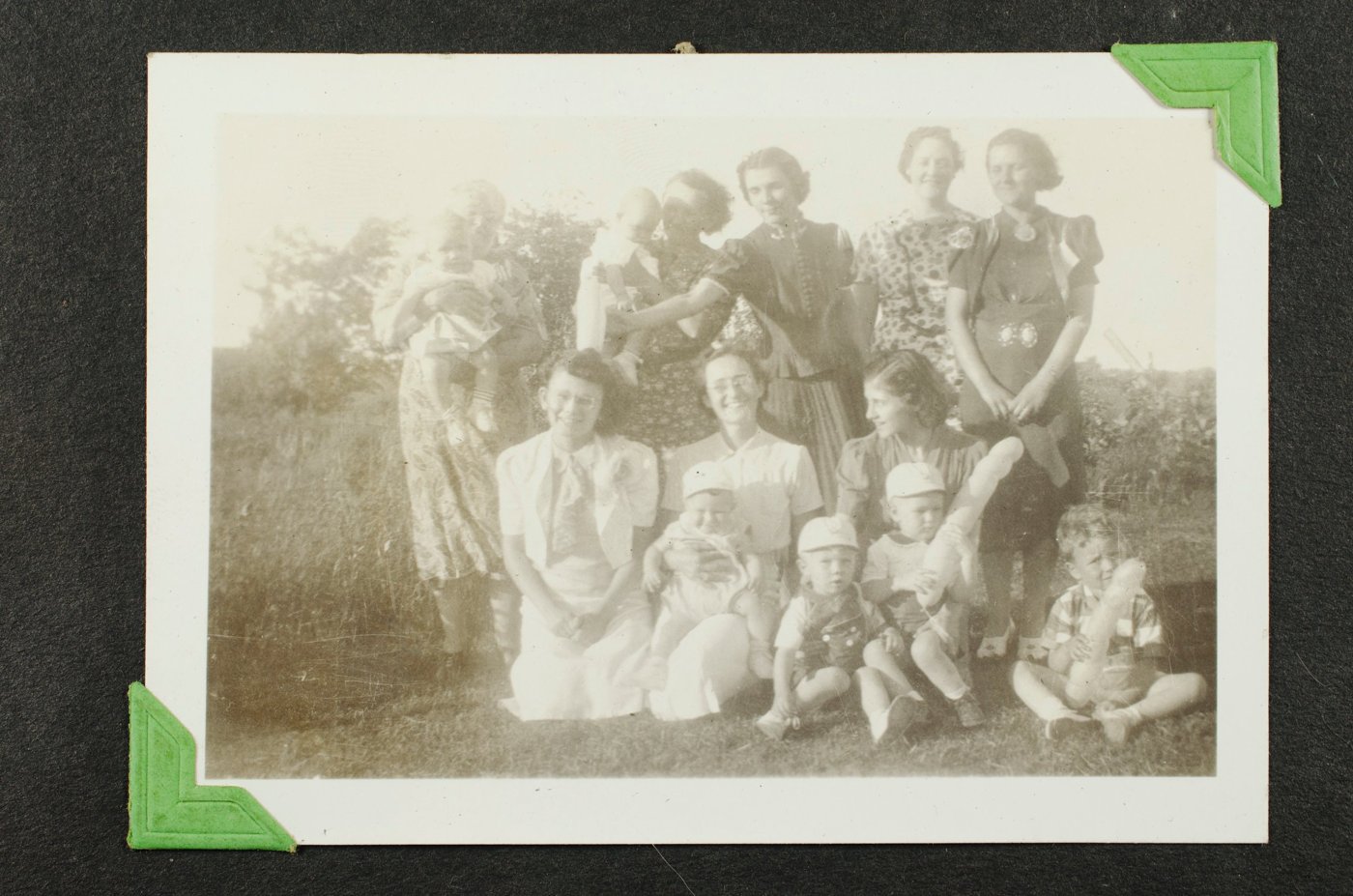
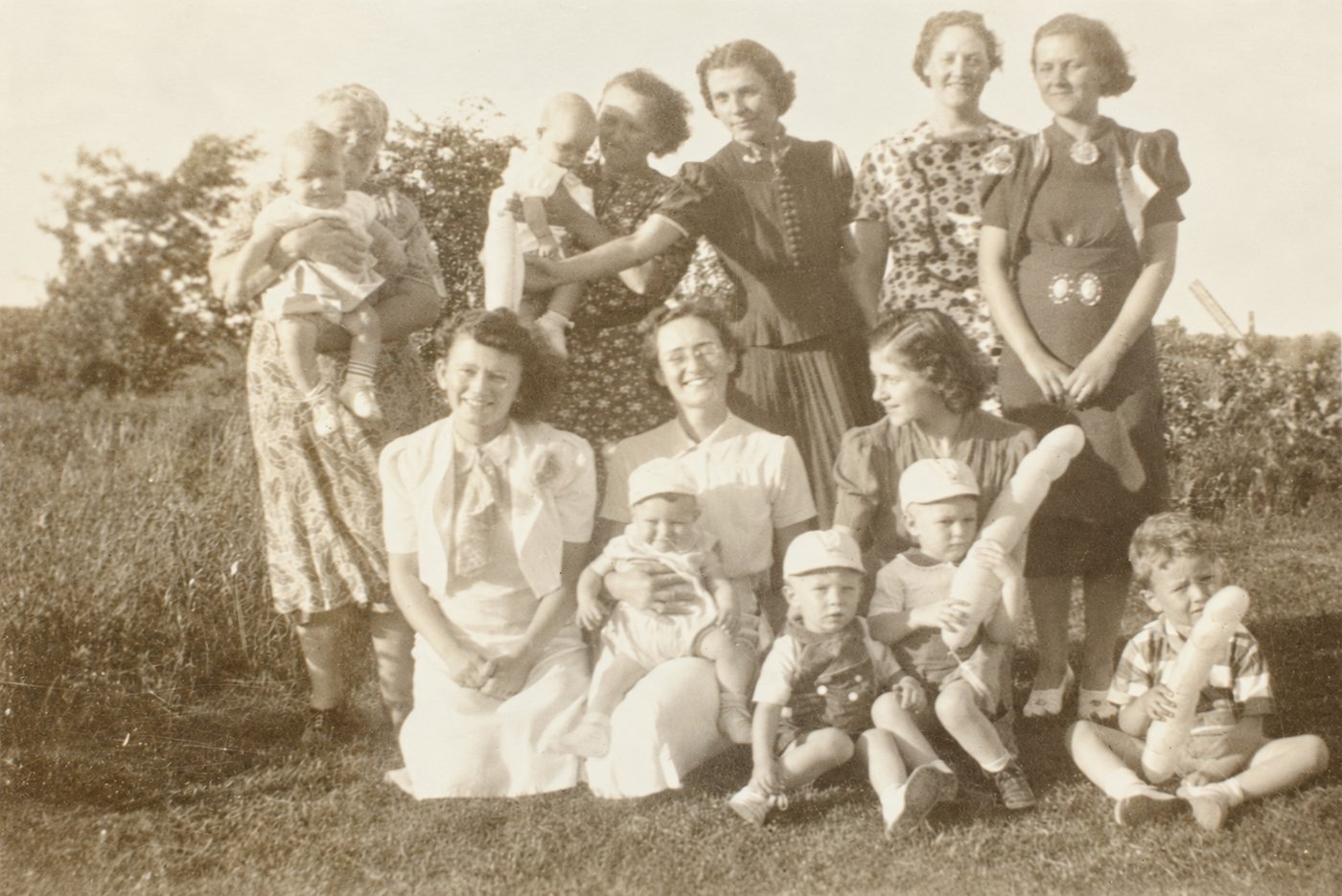
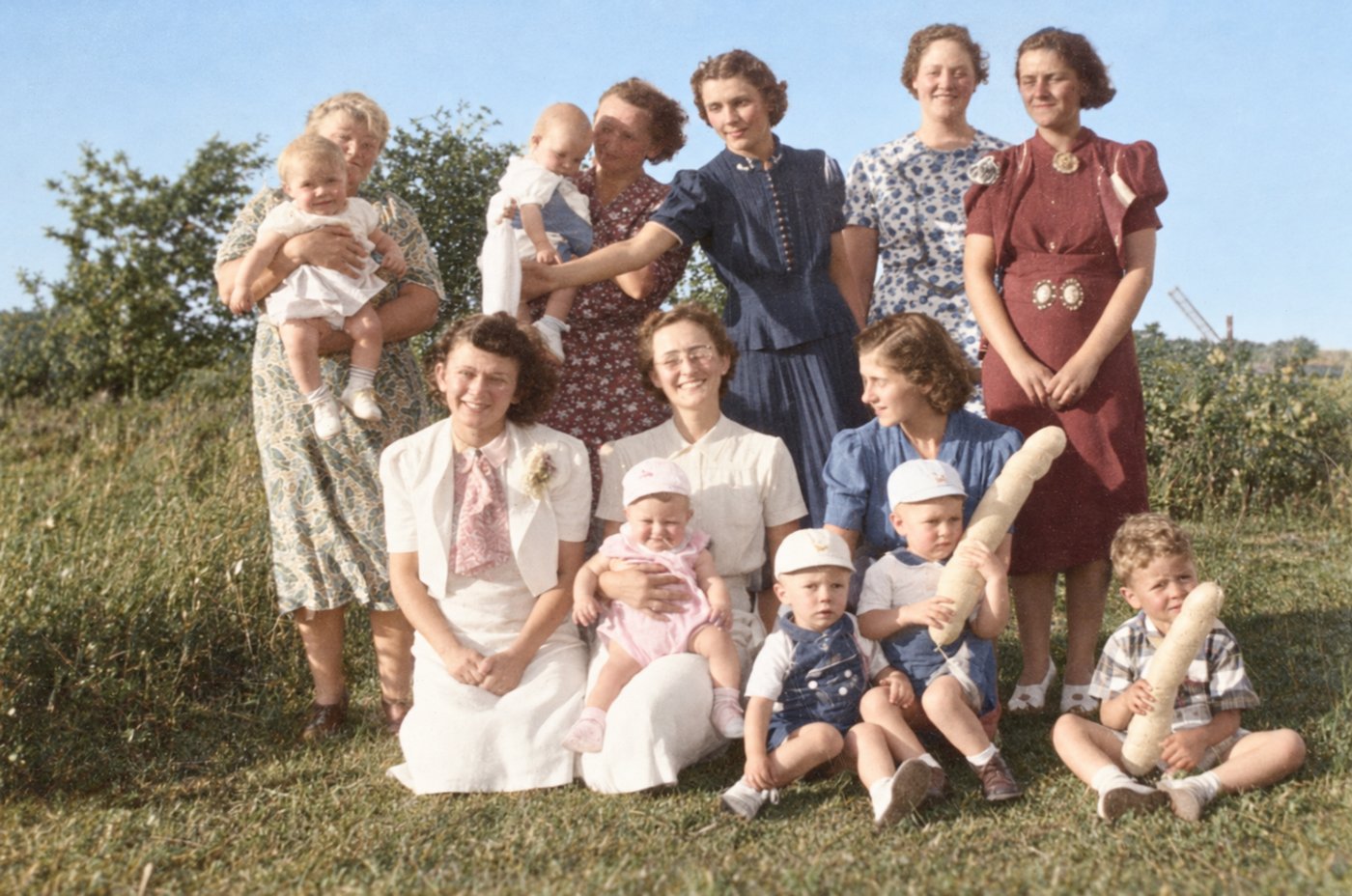
What to look for
- The sky. In the original it is washed out to white. The blue sky in the color version was invented, not recovered.
- The clothing colors. The pink outfit on the seated baby, the blue and maroon dresses, and the pink tie are all guesses. The photo holds no information about the actual colors.
- The faces in the back row. Several were faded or half hidden in the original but look clear and detailed in the color version. That detail was generated. The prompt said not to change faces, and the result still did, which is why instructions are not guarantees.
- Patterns and small objects. Compare dress prints and items people are holding or wearing. Enhancement can quietly redraw them.
The preservation-first version is the one to keep as a family record. The color version can be a pleasing print, as long as everyone knows it is an interpretation.
These prompts are long to paste every time. Demo 10 turns them into a reusable skill.
Short version to try: "Repair the scratches and fading in this old photo and trim away the album page around it. Don't change anyone's face, don't add color, and don't cut off anything inside the picture."
Show the full preservation-first prompt
Perform a conservative, preservation-first restoration of the attached vintage photograph.

Your objective is to repair visible photographic damage and remove extraneous material surrounding the photograph, NOT to enhance, reinterpret, or recreate the image. The restored photograph should look nearly identical to the original, except for the removal of damage, correction of obvious deterioration, and necessary cropping or alignment corrections.

PERMITTED CHANGES
- Remove clearly identifiable dust, scratches, spots, and physical blemishes.
- Correct obvious fading or uneven exposure using gentle, global tonal adjustments.
- Make only minimal adjustments to brightness and contrast where necessary.
- Preserve the photograph's original grain, softness, texture, and historical appearance.

CROPPING AND ALIGNMENT
- Identify the boundaries of the original photographic image. Remove unwanted borders, scanner margins, album pages, surrounding surfaces, and other clearly extraneous content outside those boundaries.
- Apply minimal rotation to correct a tilted scan or capture. Apply perspective correction only when the physical photograph was clearly photographed at an angle.
- Base alignment corrections on the photograph's physical edges, not on assumptions about whether people, buildings, or horizons within the scene should be straight.
- Crop only as much as necessary to isolate the core photographic image and remove empty edges introduced by alignment corrections.
- Preserve all original scene content, including people, clothing, objects, and background details near the edges. Do not crop for aesthetic improvement or tighter framing.
- Preserve the original photographic image's proportions. The overall file dimensions and aspect ratio may change as necessary to remove surrounding material, but do not stretch or compress the image.
- Do not use generative fill, content-aware expansion, or invented imagery to replace corners or edges. If an alignment correction would require sacrificing meaningful original content, reduce or omit that correction.
- If you cannot confidently distinguish extraneous material from original photographic content, preserve the uncertain area.

STRICTLY PROHIBITED CHANGES
- NO COLORIZATION. If the original is black and white, the output must remain black and white. If sepia, retain its original sepia appearance. Do not introduce new colors or change the original color palette.
- NO SHARPENING OR DETAIL ENHANCEMENT. Do not increase facial definition, edge contrast, texture, or apparent resolution through invented detail.
- NO FACIAL MODIFICATIONS. Preserve every person's facial features, proportions, expression, eyes, nose, mouth, wrinkles, hairline, and apparent age exactly as they appear in the source photograph. Do not reconstruct, beautify, smooth, or regenerate faces.
- Do not change clothing, hairstyles, poses, backgrounds, objects, or lighting.
- Do not alter the scene's composition except for the limited cropping and alignment corrections explicitly permitted above.
- Do not invent or replace missing visual information.

RESTORATION PRIORITIES
1. Exact preservation of people's faces and identities.
2. Preservation of all original scene content and the original photographic appearance.
3. Careful removal of extraneous surrounding material and correction of capture misalignment.
4. Removal of obvious physical damage.
5. Gentle tonal correction only where necessary.

If an improvement risks altering any original visual detail, leave that area unchanged.

Generate one restored image, preserving the source image's resolution and visual character as closely as possible, with dimensions adjusted only as needed for the permitted cropping and alignment corrections. The desired result is a carefully cleaned and properly aligned historical photograph, NOT a newly generated version of the original.
Show the full modest-enhancement prompt
Create a conservative, historically faithful enhanced restoration of the attached vintage photograph.

Your objective is to repair visible damage, make modest improvements in clarity, and introduce subtle, period-appropriate colorization while preserving the original photograph's content and character.

This is a restoration of an existing photograph, NOT a recreation or reinterpretation of the scene.

PERMITTED CHANGES
- Remove visible dust, scratches, stains, spots, and other physical damage.
- Correct fading, uneven exposure, and tonal imbalance using restrained adjustments.
- Apply subtle sharpening only where it improves the clarity of existing details. Do not generate or invent new details.
- If the photograph is black and white or sepia, apply gentle, realistic colorization using muted, historically plausible colors.
- Maintain natural skin tones, lighting, shadows, and photographic textures.
- Preserve the photograph's original grain and softness wherever possible.

CROPPING AND ALIGNMENT
- Identify the boundaries of the original photographic image. Remove unwanted borders, scanner margins, album pages, surrounding surfaces, and other clearly extraneous content outside those boundaries.
- Apply minimal rotation to correct a tilted scan or capture. Apply perspective correction only when the physical photograph was clearly photographed at an angle.
- Base alignment corrections on the photograph's physical edges, not on assumptions about whether people, buildings, or horizons within the scene should be straight.
- Crop only as much as necessary to isolate the core photographic image and remove empty edges introduced by alignment corrections.
- Preserve all original scene content, including people, clothing, objects, and background details near the edges. Do not crop for aesthetic improvement or tighter framing.
- Preserve the original photographic image's proportions. The overall file dimensions and aspect ratio may change as necessary to remove surrounding material, but do not stretch or compress the image.
- Do not use generative fill, content-aware expansion, or invented imagery to replace corners or edges. If an alignment correction would require sacrificing meaningful original content, reduce or omit that correction.
- If you cannot confidently distinguish extraneous material from original photographic content, preserve the uncertain area.

STRICTLY PROHIBITED CHANGES
- NO FACIAL MODIFICATIONS. Preserve every person's facial features, proportions, expression, eyes, nose, mouth, wrinkles, hairline, and apparent age exactly as depicted. Do not reconstruct, beautify, smooth, or regenerate faces.
- Do not change hairstyles, clothing styles, poses, body proportions, or expressions.
- Do not add, remove, reposition, or replace any people, objects, or background details.
- Do not invent missing visual information or introduce artificial textures.
- Do not apply excessive sharpening, smoothing, HDR effects, or modern photographic styling.
- Do not crop, reframe, or change the original aspect ratio.

COLORIZATION GUIDELINES
- Use restrained, natural-looking colors appropriate to the apparent historical period.
- Avoid overly saturated colors, dramatic contrast, or modern cinematic effects.
- Where original colors are unknown, use muted, plausible colors. These choices are speculative interpretations, not recovered historical facts.
- Colorization must change only the color appearance, not the underlying shapes, textures, or details.

RESTORATION PRIORITIES
1. Exact preservation of facial features and identities.
2. Preservation of all original scene details and composition.
3. Conservative removal of visible damage.
4. Subtle, historically plausible colorization.
5. Modest sharpening and tonal improvement.

If any enhancement risks changing a person's face or another original visual detail, leave that detail unchanged.

Generate one high-quality restored image that looks like the original historical photograph, carefully cleaned and naturally colorized—not a newly generated photograph.
A third option: make it look like a modern photo. This prompt goes further. It still protects identities, clothing, and the scene, but it allows full, confident color, stronger sharpening, and cleaner tones, so the result looks as though it were taken recently with a good camera. In exchange, it accepts that faces may drift slightly. Use it for a print to frame or share, and keep the original and a preservation-first copy as the family record.
Show the full modern-photo prompt
Produce one restored photograph that looks as though the original people and scene were photographed recently with a good modern camera. Modernize image quality while preserving historical content, clothing, setting, and composition. Colorize monochrome or sepia sources by default unless the user requests monochrome.

APPLY PRIORITIES IN THIS ORDER

1. Preserve recognizable identities, expressions, apparent ages, and original scene content.
2. Preserve composition, poses, clothing, objects, and period details.
3. Repair photographic damage and deterioration.
4. Produce full natural color, clean tones, and modern photographic clarity.
5. Accept minor facial drift and cautious inferred fine texture where needed for that finish.

Treat minor drift as an allowed tradeoff, not a goal. Honor stricter preservation instructions when supplied. Do not promise exact facial fidelity or factual recovery of details missing from the source.

INSPECT THE ORIGINAL

- Obtain the actual source photograph. If none is attached or accessible, ask for it; do not substitute another photo or generate a sample restoration.
- Inspect the full image, physical photograph boundaries, faces, and edge content before editing. Use the source as the authoritative reference throughout; preserve the original file.
- Distinguish dust, scratches, stains, spots, fading, and physical damage from genuine scene details. Preserve uncertain marks, textures, objects, and areas.
- Use any supplied date, location, or known colors as evidence. Treat an inferred period as approximate; do not invent historical certainty or require a date to proceed.

PRESERVE FACES AND SCENE CONTENT

- Keep each person readily recognizable. Retain facial structure, distinctive features, expression, gaze, apparent age, hairstyle, and hairline.
- Allow stronger facial sharpening and restrained reconstruction of poorly resolved texture, accepting small incidental changes in facial detail. Keep highly ambiguous anatomy softer instead of confidently inventing eyes, teeth, or other prominent features.
- Do not replace faces, beautify, de-age, change expressions, correct symmetry, add makeup, or smooth skin into a synthetic appearance. Retain natural wrinkles and age cues.
- Preserve people, animals, poses, body proportions, clothing, objects, lettering, backgrounds, and spatial relationships. Do not add, remove, reposition, or replace scene elements.
- Preserve original lighting direction, scene mood, and focus relationships. Do not invent dramatic lighting, replace backgrounds, or add artificial portrait blur.

CROP AND ALIGN CONSERVATIVELY

- Identify the physical boundaries of the original photographic image. Remove only clearly extraneous borders, scanner margins, album pages, and surrounding surfaces.
- Apply minimal rotation for a tilted scan or capture. Apply perspective correction only when the physical photograph was clearly captured at an angle. Use its physical edges as evidence, not assumptions that people, buildings, or horizons should be straight.
- Preserve all meaningful original scene content, including content near the edges. Crop only enough to isolate the photographic image and remove empty edges introduced by alignment. Never crop for aesthetic improvement or tighter framing.
- Preserve the photograph's proportions without stretching or compressing it. Allow the overall file dimensions and aspect ratio to change only as needed to remove surrounding material or perform justified alignment; do not deliberately reframe the scene into a new aspect ratio.
- Do not use generative fill, content-aware expansion, or invented imagery to replace corners or edges. Reduce or omit alignment corrections that would sacrifice meaningful scene content.
- Preserve any area whose status as surrounding material is uncertain.

REPAIR AND SHARPEN FOR MODERN CLARITY

- Remove visible dust, scratches, stains, spots, and physical damage. Permit cautious local reconstruction supported by surrounding evidence; preserve ambiguous scene details.
- Correct fading, yellowing, color casts, uneven exposure, and tonal imbalance decisively. Aim for clean whites, rich but open shadows, and natural contrast with retained highlight detail.
- Apply substantially stronger sharpening, local contrast, and deblurring than Restore Photo Faithfully permits. Aim for convincing detail consistent with a good modern lens and sensor.
- Reduce distracting grain, scan noise, haze, and deterioration while retaining natural skin, hair, fabric, and photographic texture.
- Permit cautious inferred fine detail during enhancement or upscaling, without presenting that detail as recovered fact. Avoid inventing prominent anatomy, lettering, or objects.
- Avoid halos, ringing, crunchy edges, exaggerated pores, plastic skin, aggressive HDR, and artificial microtexture. Preserve depth of field instead of making every plane equally sharp.

COLORIZE FULLY AND NATURALLY

- Colorize monochrome and sepia sources with confident, lifelike color rather than a muted vintage wash, unless monochrome is requested.
- Use natural skin tones, believable greens and skies, and richer clothing and environmental colors plausible for the apparent period. Allow stronger saturation while keeping the result photographic.
- Correct deteriorated existing color more decisively while preserving evidenced colors. Prioritize supplied references and known colors over guesses.
- Preserve lighting, shadows, material textures, and color continuity. Avoid tint bleeding, uniformly tinted faces, cinematic grading, and neon saturation.
- Do not infer ethnicity from monochrome tonal values. Treat unknown colors as plausible interpretations rather than historically verified facts.
Demonstrations · Part 5 of 8
Teaching ChatGPT a skill
The restoration prompts in Demo 9 work well, but they're long, and nobody wants to find and paste them every time. A skill solves that. It's a saved set of instructions that teaches ChatGPT how to do one particular job your way. You set it up once, and from then on ChatGPT follows it whenever you ask for that job.
- A skill teaches a repeatable procedure, such as "restore an old photo the way I like it."
- Custom instructions (see Adjusting your settings) describe you and how you like answers in general.
- A project holds the files and chats for one piece of work, such as a trip or a collection.
Skills are new and labeled beta. OpenAI's pricing page lists them on every plan, including Free, but they're still rolling out, so you may not see them yet. Look for Plugins in the sidebar and a Skills tab there.
Turn the restoration prompts into a skill
- Plan: Skills beta, all plans (rolling out)
- Best on: Computer
- Mode: Chat
Shows how to package a long, careful prompt into a reusable skill, then use it with one short request.
Step 1: ask ChatGPT to build the skill
Open Plugins, choose the Skills tab, then Create and Create with chat. (You can also just ask for a skill in an ordinary chat.) Describe the job and paste in the prompts you already have:
Build me a skill called photo-restoration for restoring old family photographs. It should offer two styles: "preservation-first," which repairs damage only and never adds color, and "enhanced," which adds gentle sharpening and realistic period colorization. Both styles crop away album pages, borders, and scanner margins and straighten the print, without cutting into the picture or inventing anything at the edges. In both styles, faces must never be changed.

Before restoring, the skill should ask which style I want if I haven't said. After restoring, it should list what it changed and remind me to compare faces against the original.

Here are the two prompts I've been using. Use them as the rules for each style, and fix any places where they contradict each other:

[paste the preservation-first prompt]
[paste the modest-enhancement prompt]
ChatGPT drafts the skill and shows it to you before installing. Read it the way you'd read any instructions written on your behalf, ask for changes if something's off, then choose Install.
Step 2: use it
Attach a photo and ask. ChatGPT recognizes a restoration request and uses the skill on its own. To call it by name, type / (a forward slash) in the message box and pick it from the list. Skills use /, while plugins such as Gmail use @.
Skills don't sync between devices yet. A skill you create in a web browser won't appear in the ChatGPT computer app or on your phone, and the reverse. Add it on each one you use: in the browser, ask ChatGPT to show the skill's full SKILL.md text and save it to a file, then on the other device go to Plugins, Skills, Create, and Upload from your computer. Or just run the "Build the skill" prompt again there.
/photo-restoration Restore the attached photo, preservation-first.
Compare that one line with the full prompts in Demo 9. The skill carries every rule about faces, cropping, and color, so the request can be short.
See what a finished skill looks like
Behind the scenes a skill is a plain text file called SKILL.md, with a short name and description at the top that tell ChatGPT when to use it, followed by the instructions. Yours will differ in wording. This is an example of the result:
---
name: photo-restoration
description: Restore old or damaged family photographs in one of two styles, preservation-first (repair only, no color) or enhanced (gentle sharpening and realistic colorization), without altering faces or inventing content.
---

# Photo restoration

## Before you start
- If the user hasn't named a style, ask: "Preservation-first (repair only, keeps the original tone) or enhanced (adds gentle sharpening and color)?"
- Work only from the attached photograph. If none is attached, ask for one.

## Rules for both styles
- Never change faces: features, proportions, expressions, wrinkles, hairlines, and apparent age stay exactly as in the original. Don't smooth, beautify, or regenerate them.
- Don't add, remove, move, or replace people, objects, clothing, or background details.
- Remove dust, scratches, spots, stains, and fading.
- Crop away album pages, photo corners, borders, scanner margins, and surrounding surfaces, but nothing inside the photograph. Straighten a tilted scan using the print's physical edges. Correct perspective only if the print was clearly photographed at an angle.
- Never stretch or squeeze the image, and never fill corners or edges with invented imagery. If you can't tell whether an area is part of the photograph, keep it.
- Keep the original grain and softness. No HDR effects or modern styling.

## Preservation-first
- No colorization: black and white stays black and white, and sepia stays sepia.
- No sharpening or added detail.
- Only gentle, overall adjustments to brightness, contrast, and fading.

## Enhanced
- Subtle sharpening of detail that is already there; never invent detail.
- Restrained, period-appropriate colorization with natural skin tones and muted colors. Colorization changes color only, never shapes or textures.

## When you're done
- Produce one image.
- List what you changed: damage repaired, how it was cropped and straightened, and any color added.
- If you added color, say that the colors are plausible guesses, not historical fact.
- Remind the user to compare faces with the original and to keep the original file.
Skills worth building
Anything you ask for the same way again and again makes a good skill:
- Writing the club newsletter or meeting minutes in a set format
- Turning a cooking video or a messy recipe into a standard recipe card (see Demo 15)
- Summarizing a medical or insurance letter into the same few headings every time
- Writing thank-you notes in your own voice
Keep each skill to one job, and review what it does the first few times you use it. A skill is only as good as its instructions.
Back to top ↑Demonstrations · Part 6 of 8
Building a website
With a project to organize your material and Sites to publish it, ChatGPT can turn a personal collection into a website you can share.
A family website with Projects and Sites
- Plan: Paid; availability varies by account
- Best on: Computer
- Mode: Work, Projects, Sites
Shows how ChatGPT can turn a personal collection into a website you can share with family.
The collection: 58 postcards, mostly from the early 1900s, sent by or to my great-grandmother. I inherited them through my father's estate and had scanned both sides of each card. Rather than leave them sitting in a folder, I wanted relatives to be able to browse them.
Using a Project in Work, ChatGPT reviewed the scans, matched fronts with backs, transcribed the handwriting, and noted people, places, and dates. Where the handwriting was unclear, it kept the possible readings instead of guessing. Sites then built and published a website where visitors can browse, search, enlarge the handwriting, and share a link to any card.
The source material
Here is one card from the collection, front and back. The back shows why this takes care: the message is written sideways in faded ink, the postmark is only partly legible, and the address and stamp have to be read separately from the message.
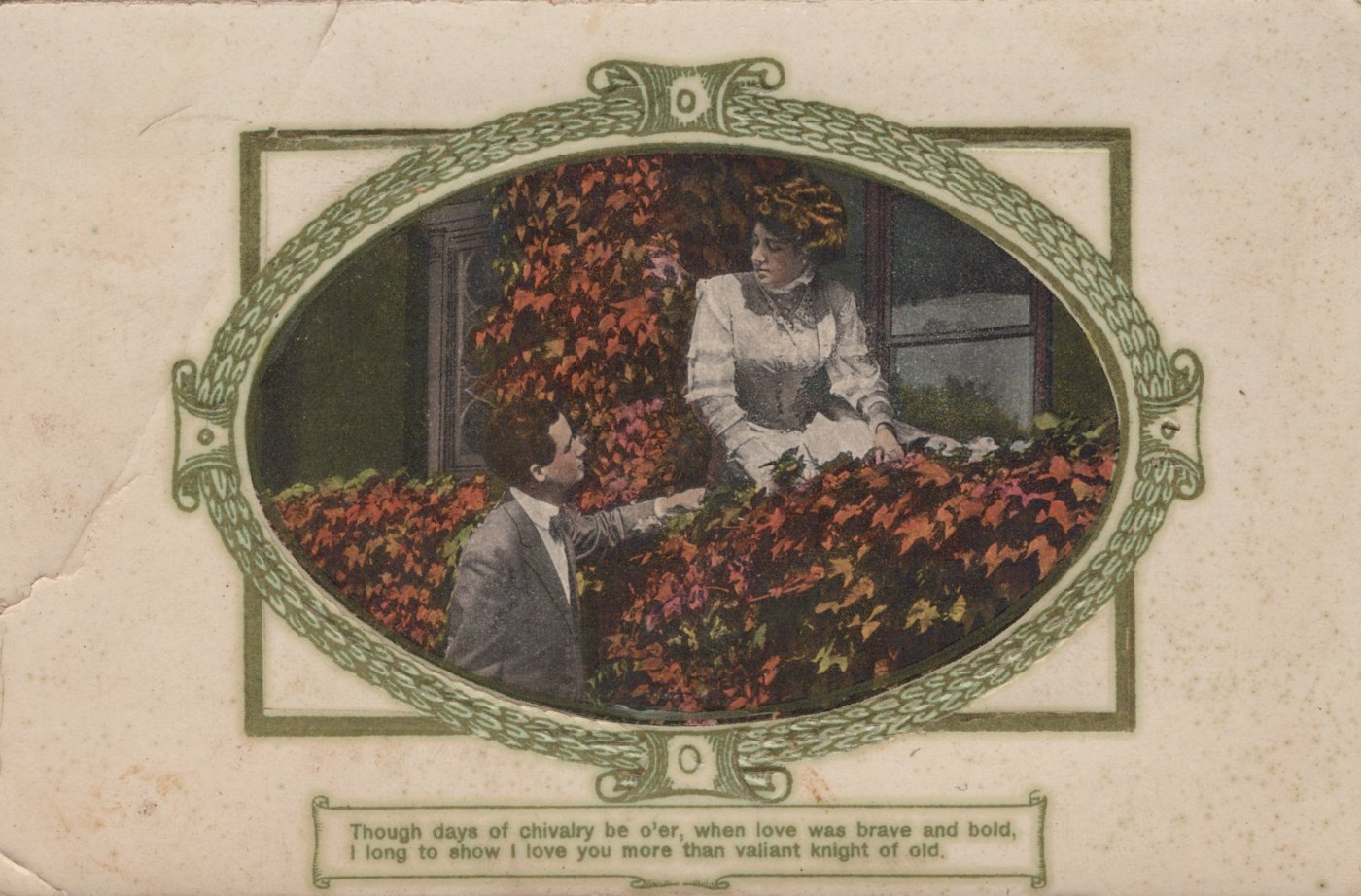
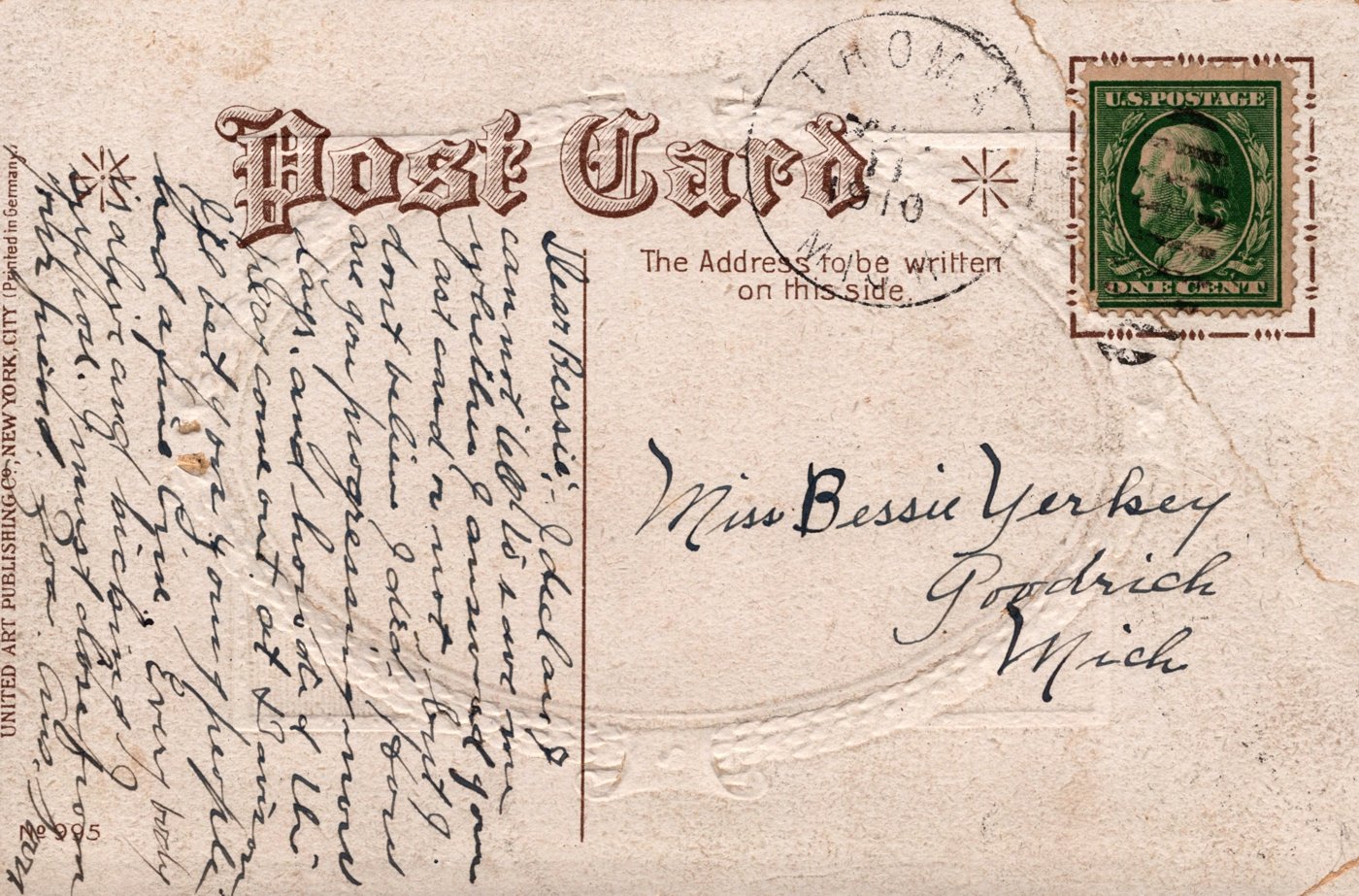
In class we'll explore the finished site and look at one uncertain transcription and how it was handled.
Explore the family postcard collection ↗Show the full prompt
Review the postcard scans in this Project's folder and create a website using ChatGPT Sites so I can share the collection with family and others.

These 58 postcards date mainly from the early 1900s and were mostly sent by or to my great-grandmother, Bessie Yerkey. I acquired them through my father's estate after he passed away a few years ago.

Identify each postcard and match its front and back. Treat original and enhanced scans of the same card as one postcard. Describe the picture and transcribe printed text, handwritten messages, addresses, signatures, and postmarks where legible.

Record dates, people, places, and interesting family or historical details. Distinguish the place pictured from the place where the card was mailed. Mark uncertain readings clearly and preserve plausible alternatives rather than guessing. Check any existing catalog notes against the images and correct clear errors.

Save a readable catalog entry for each postcard in the Project folder, including references to its images. Preserve the original scans.

Build a complete, attractive website with a warm, understated design suited to a family archive. Include a thumbnail gallery of all 58 postcards and a viewer showing each card's front, back, and accompanying notes. Allow visitors to enlarge images to examine handwriting.

Include search across names, places, and messages, useful topic filters, previous and next navigation, and a shareable link to each postcard. Add a short introduction explaining the collection's family background.

Make the website easy to use on phones and computers. Explain briefly that some dates and transcriptions remain uncertain. Keep local computer paths and technical catalog data out of the visitor experience.

Verify that all postcards, images, notes, and viewing controls work. Publish the finished website so anyone with the link can view it, and give me the shareable address.
Adapt it for your own collection: photo albums, letters, recipes, or a scrapbook all work the same way.
Demonstrations · Part 7 of 8
Health and finances
These two features connect to your most personal information. Both are also useful without connecting anything, by chatting and uploading documents you choose.
Your health: connected records or just a conversation
- Plan: All plans, including Free (Health: U.S. adults 18 and older)
- Best on: Web or iPhone
- Mode: Health, or Chat with uploads
Shows how ChatGPT can help you understand your health information and prepare for appointments, with or without connecting your records.
The Health feature
Open Health from the sidebar and choose Get started. In class we'll walk through connecting two kinds of sources:
- Medical records from patient portals at many U.S. hospital systems, including those that use Epic (often called MyChart) or Oracle Health, plus One Medical and Function Health. If your doctor's office or hospital has an online portal, it may well be supported.
- Health and fitness apps and devices, such as step counts, workouts, sleep, heart rate, and meals. Apple Health is one example: it collects data from your iPhone and Apple Watch, and from devices such as Garmin watches and Oura rings that share with it. Connecting Apple Health requires the ChatGPT iPhone app. Other apps, including MyFitnessPal, WeightWatchers, and Peloton, connect directly. Health data from Android phones isn't supported yet.
Once connected, ChatGPT can summarize lab results over time, list your medications and conditions, relate your sleep or activity to how you've been feeling, and suggest questions for your next appointment. It asks before using your records in a conversation, and you can allow it once or always. You can also type @Health in a message to bring them in.
Privacy and risks. OpenAI says connected records and Apple Health data, and conversations that use them, are never used to train its models or to target ads, whatever your training setting, and that health data gets extra encryption. Still, consider:
- Your records live in one more place. A copy of your medical history now sits with OpenAI, and a breach there would expose it.
- Protect the account. Anyone who gets into your ChatGPT account could see your health information. Turn on multi-factor authentication first (see Adjusting your settings).
- It stays around. Health conversations can create memories and remain in your chat history until you delete them. Use Temporary Chat for questions you don't want kept.
- It can be wrong. Records can be incomplete or out of date, and ChatGPT can misread them. It does not replace your doctor.
To disconnect a source, open Health, then Accounts. OpenAI says synced data is deleted within 30 days.
Without connecting anything
You don't need to connect a single account for ChatGPT to be a useful health assistant. Just talk to it, or attach what you already have: a lab report, a photo of discharge instructions or a prescription label, or a spreadsheet of blood pressure readings. It can explain unfamiliar terms, spot trends, and help you organize questions so you get more out of a short appointment. Cover your name, birth date, and any account or member numbers before uploading. For anything urgent, call your doctor or 911, not ChatGPT.
Help me prepare for my next appointment using these records. Summarize the main changes over time in plain language, preserving dates, units, and the reference ranges shown. Point me to the record behind each point and list questions to ask my clinician. Distinguish missing information from a normal result. Do not diagnose me or recommend changes to medication.
I've attached my blood pressure readings from the past three months. Show the trend in a simple chart, note any times of day or days of the week when readings run higher, and list anything I should mention to my doctor. Don't suggest changes to my medication.
My doctor said I have [condition] and prescribed [medication]. Explain in plain English what that means, what the medication is for, common side effects to watch for, and three good questions to ask at my follow-up visit.
Your finances: connected accounts or uploaded files
- Plan: All plans, including Free (Finances: U.S. adults)
- Best on: Computer
- Mode: Finances, or Chat with uploads
Shows two ways ChatGPT can help with money, and what you give up with each.
The Finances feature
Like Health, Finances works by connecting your accounts. Once connected, ChatGPT can sort your spending into categories, point out subscriptions and upcoming payments, show how your investments are doing, and help you build a budget from your actual habits. You'll find Finances in the sidebar. In class we'll open it and look at the screen where accounts are connected, but we won't connect any.
How the connection works. ChatGPT links to banks, credit cards, and brokerages through Plaid, the same service many banking and payment apps use, which works with more than 12,000 institutions. You sign in through Plaid or on your bank's own site, and ChatGPT receives a connection to your data rather than your password. It gets a read-only view of balances, transactions, investments, and debts. It cannot move money, make changes, or see full account numbers. You can disconnect at any time under Settings, Apps, Finances, and OpenAI says it then deletes the synced data within 30 days.
The risks to weigh. Being cautious here is reasonable.
- A complete picture in someone else's hands. Your transactions reveal where you shop, travel, give, and get medical care. Connecting puts that picture with OpenAI and Plaid, and a breach or misuse at either would expose a great deal.
- Your account becomes more valuable to thieves. Anyone who gets into your ChatGPT account could see your finances. Turn on multi-factor authentication first (see Adjusting your settings).
- It stays around. Conversations about your money remain in your chat history until you delete them, and ChatGPT may save financial "memories," which you can review on the Finances page. Disconnecting doesn't delete either one.
- Training. These conversations follow your "Improve the model for everyone" setting, like any other chat.
- It can be wrong. ChatGPT is not a financial advisor and has no duty to act in your interest. Check anything important with your advisor or the original statement.
- Scams will follow. Connect accounts only from inside ChatGPT itself. Ignore any email, text, or call urging you to link your bank to ChatGPT.
You don't have to connect anything to get help with your money. The next approach keeps you in control of exactly what ChatGPT sees.
Analyzing statements and spreadsheets you upload
Any plan can read files you attach with the + button: a PDF statement, a Medicare summary notice, a utility bill, or a spreadsheet of transactions downloaded from your bank's website. ChatGPT can explain the terms, add up totals, compare months, find recurring charges, and turn the numbers into a table or chart. It sees only the files you choose, and only when you share them. Before uploading, cover or crop out account numbers and your Social Security number.
Explain this statement in plain English. What is it telling me, what changed since the last period, and is there anything unusual I should ask about? Quote the exact line for anything you flag. Don't give me investment advice.
I've attached a spreadsheet of my credit card transactions for the past 12 months, downloaded from my bank. Group the spending into categories, show monthly totals in a table and a chart, and list any recurring charges or subscriptions. Show how you calculated the totals so I can check them.
Asking it to show its work makes errors easier to catch. Spot-check a total or two against the original before relying on the results.
Back to top ↑Demonstrations · Part 8 of 8
ChatGPT working for you
Beyond answering questions: tasks that run on a schedule, larger jobs handed to Work, such as turning a video into a recipe card or scheduling a team, and an assistant that keeps going between conversations.
Put ChatGPT on a schedule
- Plan: All plans; Free and Go allow 3 tasks
- Best on: Web browser or phone app
- Mode: Chat
Shows how ChatGPT can do something for you later, or on a regular schedule, without you asking each time.
Just ask in an ordinary chat, using words like "every Friday" or "on November 20." ChatGPT confirms the schedule, and when the time comes it runs the request and sends you the result as a phone notification, an email, or both. You choose which under Settings, Notifications.
In class we'll set up the weekend weather task below, then open Scheduled in the sidebar to see a task that has already run. That page is where you pause, edit, or delete your tasks.
Every Friday at 7 a.m., give me the weekend weather forecast for Bluffton and Hilton Head and suggest one outdoor activity that suits it.
Every Monday morning, send me a short, plain-English summary of the most important AI news from the past week, with links to the sources.
On November 20 at 9 a.m., remind me to order the Thanksgiving turkey.
Good to know: on Free, tasks run at most once a day, in a general time window such as "morning" instead of an exact time. Paid plans allow exact times and more tasks: 5 on Plus, 15 on Pro. Tasks can't be created from a Voice conversation, and the Scheduled page may not appear in the computer app, so use a web browser or the phone app. For phone notifications, create the task in the phone app and allow notifications when asked.
How is this different from dot? A scheduled task repeats one request on a timetable. dot (Demo 17) takes on an ongoing responsibility and decides for itself what to do and when to check in.
Back to top ↑A recipe card from a cooking video
- Plan: Paid
- Best on: Computer
- Mode: Work
Shows Work carrying a task through several steps: watching a video, pulling out the details, and making something you keep.

Work can watch a cooking video (or read its transcript), pull out the ingredients and steps, grab a picture of the finished dish, and assemble a recipe card image to keep on your phone. When a quantity isn't given in the video, a good result says so rather than guessing. This example came from a Drew Cooks cherry cobbler video. Regular Chat couldn't finish this task in testing; Work's extra tools could.
Watch for agent behavior. This is a good example of the agent loop described in the AI overview. It's a multi-step job: get to the video, pull out the recipe, find a picture of the dish, and lay out the card. And when one approach to the video runs into a problem, such as being unable to open it directly, Work doesn't stop. It tries another way, for example working from the video's transcript, and carries on. Watch the progress steps as it works.
Create a readable recipe-card PNG for my phone from this video: [paste the video link]. Verify the ingredients, quantities, temperatures, times, and steps against the video or its transcript. Flag missing or uncertain details instead of inventing them. Use a genuine finished-dish frame from this video when available. Include numbered instructions and the creator's name and source link. If you cannot access the source or image, tell me what to provide before making the card.
Check the card against the video before you cook from it. An attractive result can still have a wrong quantity or temperature.
Make it a skill
If you make recipe cards often, the prompt above is a good candidate for a skill. The instructor makes cards from the Drew Cooks channel regularly, so he built a Drew Cooks Recipe Cards skill. Now a card takes nothing more than the skill and a video link: type /, pick the skill, and paste the link.
Where it works. At last check, this skill ran in the ChatGPT computer app in Work mode but not in ChatGPT in a web browser. The computer app's Work mode has tools for opening a video and capturing a frame that the browser version doesn't. That's a useful reminder that what you can do sometimes depends on where you're using ChatGPT, not only on your plan.
The skill holds everything that would otherwise go into a long prompt:
- A saved design. A tall, phone-sized card with a warm ivory background, forest-green headings, tomato-red step numbers, and plain, easy-to-read lettering. The skill includes a sample card as a picture of the design to follow, which shows that a skill can carry files, not just instructions.
- How to get the recipe right. Read the video's transcript, check fractions, units, and temperatures against what's shown on screen, and flag any quantity the video never gives instead of guessing.
- An honest photo. Use a real frame from the end of the video showing the finished dish, never a made-up picture of food.
- Safety. If the video doesn't give a safe cooking temperature, look one up from FoodSafety.gov or the USDA and label it as added guidance.
- Credit. Print the creator's name, the video link, and the time in the video the photo came from on the card itself.
- A final check. Compare the finished card against the recipe notes before handing it over.
The same idea works for anything you make the same way again and again: pick a design and a set of rules once, and every result after that comes out consistent.
Back to top ↑Schedule a tennis team with Work
- Plan: Varies by account
- Best on: Computer
- Mode: Work
Shows how Work can take over a scheduling chore that would normally need a complicated spreadsheet.
Picture any club job where you assign people to dates: volunteer shifts, a bridge rotation, a committee calendar. For a tennis team, the challenge was picking six players for each week's doubles matches while balancing ability, giving everyone fair playing time, and working around vacations and partner preferences.
I gave Work the roster, the league calendar, and the rules in plain English. It produced a schedule with pairings, courts, playing totals, and a chart that makes uneven playing time easy to spot. When a player later dropped out of a match, a one-sentence follow-up got a minimal fix and an explanation of what changed. I still review and approve every lineup.
Try it with sample data
You can practice with a sample Google Sheet for a made-up league. Every name, email address, and phone number in it is fictional. It has three tabs:
- League Schedule: 14 weeks of matches for six color-coded teams, with the courts, holiday breaks, and home teams.
- Purple Team Roster: 13 players with ratings, dates they can't play, and partner preferences, including couples who must play together.
- Scheduling Rules: eight rules in plain English, such as preferring mixed pairs, putting the strongest pair on Line 1, and balancing playing time.
The easiest way to give it to ChatGPT is to open the sheet, choose File, Download, Microsoft Excel (.xlsx), and attach the downloaded file. Then use this prompt:
Use the league schedule, team roster, and scheduling rules in the attached spreadsheet. Create a season schedule for the Purple team (team 6). Ask me about missing or conflicting scheduling information. Do not guess.

Create a readable PDF showing dates, lines, pairs, combined ratings, courts, and home/away. Mark unknown details TBD. Include each player's total, first-half and second-half appearances, and longest gap in playing dates. Add a chart with players down the side and dates across the top. Use green cells for scheduled appearances and show totals.
Then try a change, such as "Annette Cord can't play on November 6," and see how it adjusts. The prompts below are the general versions to use with your own team's information.
Show the prompts for your own team
Use the league schedule, team roster, and scheduling rules in this file: [attach or link your roster and rules].

Create a season schedule for my team. Ask me about missing or conflicting scheduling information. Do not guess.

Create a readable PDF showing dates, lines, pairs, combined ratings, courts, and home/away. Mark unknown details TBD. Include each player's total, first-half and second-half appearances, and longest gap in playing dates. Add a chart with players down the side and dates across the top. Use green cells for scheduled appearances and show totals. If cancellations occur, distinguish those from completed play and future assignments in the chart.
[Player name] cannot play on [date]. Suggest the smallest changes that satisfy the rules. Preserve completed matches, explain what changed, and show any unresolved conflicts. Do not notify players.
Meet dot, an assistant that keeps working
- Plan: Pro or Business Premium (rolling out)
- Best on: Phone or computer
- Mode: dot
Shows where AI assistants are heading: from answering questions to taking on ongoing responsibilities.
dot is a personal assistant from OpenAI with its own computer in the cloud. It remembers your interests and projects, can use apps you authorize, and keeps working after you close ChatGPT. You might ask it to follow a topic and report meaningful changes, or to keep track of preparations for an upcoming event.
In class we'll see how dot is set up, ask it to summarize the work it did preparing this class, and look at its activity history to see what it did while no one was watching. We'll also see how to stay in control: reviewing its work, choosing which apps it can use, and setting what needs your approval.
If your plan includes dot, try handing it an ongoing job:
Keep an eye on news about Medicare drug plans and coverage in South Carolina. Once a week, tell me if anything changed that could affect someone on a standard Part D plan, with links. Don't contact anyone or sign me up for anything.
I'm hosting a club dinner for 20 people on the second Saturday of next month. Keep a running checklist of what needs doing and when, remind me a few days before each deadline, and ask me before taking any action that involves other people.
Good to know: pausing dot doesn't automatically stop tasks you've handed it. Stop delegated tasks separately under Activity and cancel recurring ones under Scheduled. dot controls and availability
About 10 minutes, with questions
Using ChatGPT safely
- Check what matters. ChatGPT can be confidently wrong. Verify prices, hours, medical information, and anything you'll act on with an original or official source.
- Keep identifying numbers out. Don't type or upload Social Security numbers, account numbers, or passwords. Cover them on documents before you take a photo or upload.
- Review before anything leaves. When ChatGPT drafts an email or publishes a page for you, read it first. You're responsible for what's sent in your name.
- Know what you've connected. A connected app such as Gmail lets ChatGPT read that account. Connect only what you need, and disconnect what you no longer use.
- It's a starting point, not a professional. Use it to prepare for your doctor, lawyer, or financial advisor, not to replace them.
- Watch for imitations. Download the app only from your phone's official app store, and be wary of emails or ads claiming to be from ChatGPT that ask for payment or sign-in details.
For later
Further reading
- ChatGPT Learn: OpenAI's official guides to ChatGPT's features. Parts of the site are written for software developers, but the feature guides are a good next step after this class.
- What ChatGPT can do (OpenAI)
- How Chat and Work differ
- Voice: availability and controls
- Sites: current availability
- dot: availability and controls
- Official plan comparison and pricing
Help us improve
Your feedback
We don't hand out a survey or feedback form, but we'd very much like to hear how the class went for you. A quick email is plenty: what was most useful, what was confusing or too fast, and what you'd like to see covered next time. This edition of the class was reshaped by feedback from the first one.
You can also write to ron@snyderjr.com or the AI SIG at SCHHCC.AI.SIG@gmail.com.
Back to top ↑