 AI, Plainly
Member Voices · October 21, 2026
Turn a YouTube Cooking Video into a Smartphone Recipe Card with ChatGPT
A cooking video is fun to watch but awkward to cook from. What I want is one tall image on my phone: the ingredients, the numbered steps, and a photo of the finished dish. So I asked ChatGPT to turn a YouTube cooking video into exactly that, a smartphone recipe card, with a single prompt.
It worked, but only in one of ChatGPT’s two modes. Open the ChatGPT app and you’re asked to choose Chat or Work, a choice I had hesitated over too. When I gave ChatGPT this request in Chat, it failed. In Work, the same prompt produced the finished card. Here’s what I asked for, what happened in each mode, and the exact prompt so you can try it yourself. I’ll also demonstrate it at our November 9 AI SIG meeting.
A cooking shortcut I wanted to simplify
Since retiring, I’ve taken on some of the meal preparation responsibilities at home. Cooking isn’t one of my strengths, so I look for simple recipes made with common ingredients and minimal fuss.
That’s why I’m a big fan of Drew Cooks’ YouTube Shorts. His recipes are exactly the kind I like: approachable dishes that look like something I could actually make.
When I find one I want to try, I typically turn it into a simple recipe card with an ingredient list, step-by-step instructions, and a photograph of the finished dish. I like having everything in one tall, smartphone-friendly image. I can display it on my phone while cooking and pull up the ingredient list when grocery shopping.
What I wanted was a simple, one-prompt workflow: give ChatGPT a YouTube Short URL and get back a finished recipe-card image.
The request was more involved than it sounded
My prompt described the card’s appearance, including large text, numbered instructions, and a layout that would be easy to read on a phone.
It also included some important requirements:
- Get the ingredients and instructions from Drew’s actual video.
- Preserve quantities, temperatures, cooking times, and useful techniques.
- Use a genuine photograph of the finished dish captured from the video.
- Keep the food photograph faithful to the original.
- Include the source and deliver a downloadable PNG image.
The photograph requirement turned out to be especially useful for understanding the task. I wanted the dish Drew actually made, with its original appearance preserved. That meant ChatGPT needed to obtain a real video frame and place its pixels into the card.
The assignment involved research, image capture, image processing, layout, and file creation—all connected in one workflow.
My first attempt: Chat
I submitted the prompt in regular ChatGPT Chat.
It didn’t complete the task. The response said YouTube had throttled access to the video, so it couldn’t retrieve the transcript to verify the recipe or capture a photograph of the finished dish. It asked me to upload the video as a file instead.
I had provided detailed instructions, but instructions alone couldn’t supply the missing source material. The prompt told ChatGPT to explain any missing source or tool instead of inventing details, and it did. Stopping was preferable to handing me a convincing-looking card with unverified ingredients.
My second attempt: Work
I tried the same prompt again in Work. This time, it produced a finished, downloadable recipe-card image.
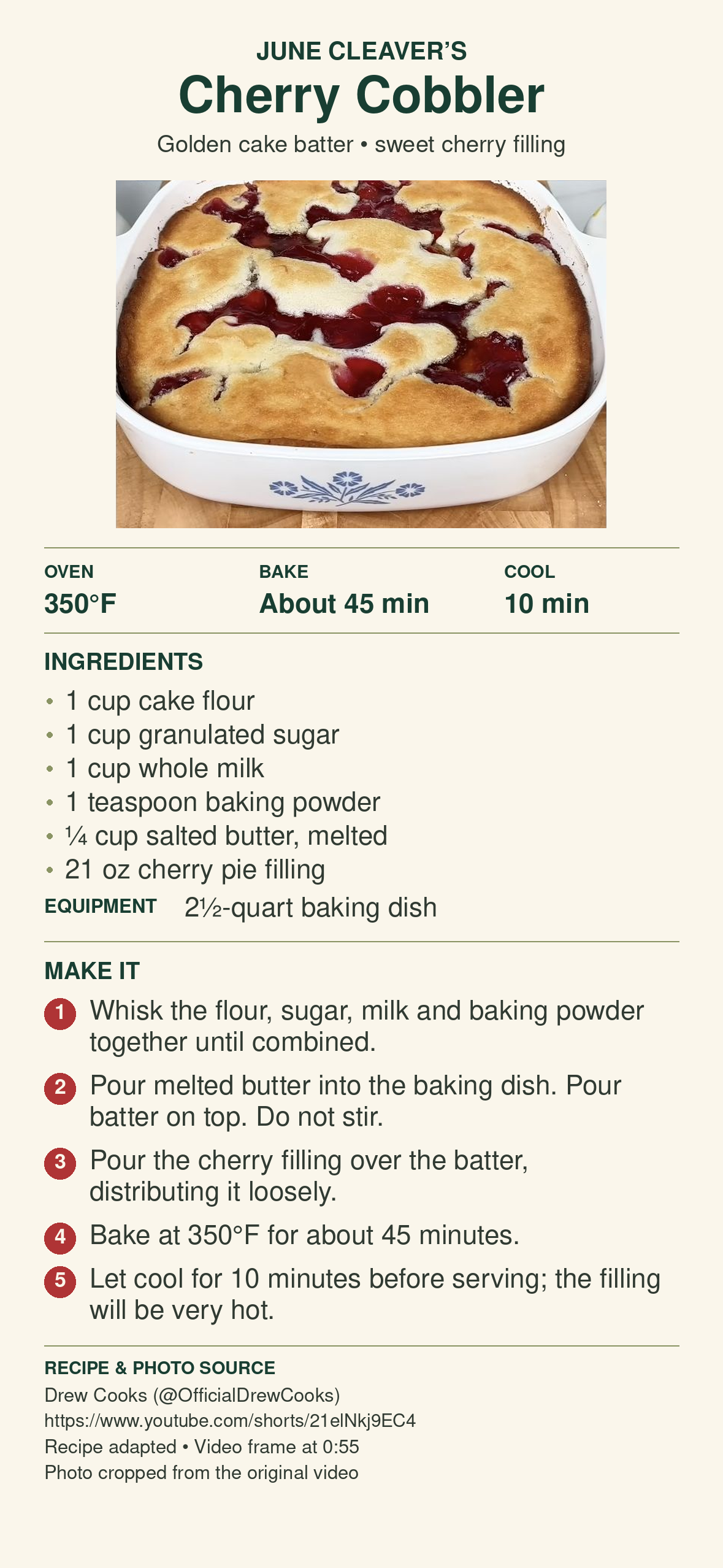
There are still details to review. Getting a finished file doesn’t remove the need to check its contents.
What Work provided
The most helpful way I’ve found to understand Work is as a workspace where ChatGPT can carry out a series of actions toward a finished result.
OpenAI describes Work as a way to delegate substantial tasks using available files, plugins, and approved tools. Those tools allow it to gather information and create outputs you can inspect and use. OpenAI’s introduction to Work explains this approach.
Work has a more capable working environment, including a cloud-based computer and browser. It can navigate websites more like a person would, download and process files and images, run software tools to create finished documents or images, and try another approach when something doesn’t work. In other words, Work gives you an agentic way of working with ChatGPT: you hand it a goal, and it uses tools to carry out the steps.
In my case, Chat ran into YouTube’s restrictions, while Work succeeded, most likely because its browser and tools gave it another way to reach and process the video. The difference wasn’t how well ChatGPT understood my instructions. It was the tools and working environment available to carry them out.
This doesn’t mean Work has unrestricted access to YouTube. It shows that the tools available in that session gave it a workable route to the result.
How I’ll use Chat and Work now
This experience gives me a more practical starting point.
I’ll use Chat when I want to discuss dinner ideas, understand a cooking technique, or improve a set of instructions. When I want ChatGPT to gather source material, handle images, create a file, and check the finished result, I’ll start with Work.
That matches OpenAI’s distinction between using Chat for questions and back-and-forth conversation and using Work to carry a larger task through to a reviewable result. Available capabilities depend on the platform, plan, tools, and settings. See OpenAI’s guide to using ChatGPT.
For me, the recipe card made that distinction concrete. I had a useful task I wanted completed, and Work supplied the environment needed to finish it.
A choice that may not last
I suspect this Chat-or-Work decision won’t be around for long. Claude recently combined its Chat and Cowork modes, so the tool now picks the right one automatically, depending on the task. I expect OpenAI will do the same in a future update. If it does, you’ll simply describe what you want and ChatGPT will decide whether a conversation is enough or whether it needs its computer, browser, and tools.
That’s my guess, not an announcement from OpenAI. Until then, knowing the difference helps you choose, and understand what happened when a request doesn’t work out the way you expected.
Turning the workflow into a reusable skill
This workflow is also a perfect candidate for a reusable skill. Once I’m happy with the process, I can save the instructions so I don’t have to paste the entire prompt every time I find a recipe I want to try.
I’ll explain how to create and use that skill in another article. For this demonstration, the full instructions are included in the prompt so both modes receive the same request without depending on a saved skill.
Try the comparison yourself
Submit the full prompt below in two fresh conversations: first in Chat, then in Work. Keep the model and other settings as similar as the interface allows.
Compare whether each attempt verifies the recipe, obtains an authentic photograph, and delivers a readable, downloadable image. Save the responses and inspect the finished card.
The prompt below specifies one exact video, so every attempt starts from the same recipe: Drew Cooks’ cherry cobbler Short on YouTube. Select the picture to watch it here. The prompt also requests a 1179 × 2556-pixel image for viewing on my iPhone.
The recipe-card prompt
Select Copy the prompt, then paste it into a new conversation in Chat and again in Work.
Create a finished, downloadable recipe-card image from a Drew Cooks YouTube Short.

Recipe video to use: https://www.youtube.com/shorts/21elNkj9EC4

Use this exact video.

Use the instructions below directly. Do not depend on a saved skill, template, or previous conversation.

FIND AND VERIFY THE RECIPE

- Confirm the creator and title. Read the narration, transcript/captions, creator-provided description, and visible cooking steps where accessible.
- Extract every ingredient and quantity, the instruction sequence, equipment size, cooking temperatures, cooking times, and cooling or resting times.
- Preserve spoken corrections and important techniques. Clearly distinguish optional ingredients.
- Do not borrow quantities from similar recipes or invent servings, preparation times, or missing facts. Resolve essential uncertainties before designing.

USE A GENUINE FINISHED-DISH PHOTOGRAPH

- Capture a clear, unobstructed frame showing the finished dish, preferably before tasting begins. Verify and record its actual timestamp.
- Crop away the player interface, captions, presenter, and unnecessary surroundings while keeping the dish visible.
- Preserve the original photograph. Use ordinary image-processing tools to crop, proportionally resize, and insert its actual pixels into the card. If you generate the surrounding design with AI, replace any generated food panel with the original captured photograph.
- Do not synthesize, redraw, beautify, or replace the food. Do not add garnish or change the dish, plating, or cherry/glaze patterns.
- If frame capture is unavailable, use a suitable finished-dish thumbnail from that exact video and label it “YouTube thumbnail.” Never invent a timestamp.

DESIGN THE SMARTPHONE RECIPE CARD

Deliver a finished PNG image at 1179 × 2556 pixels, in tall portrait format, for viewing on an iPhone.

Fit the complete photograph, recipe, and attribution within these dimensions while preserving readability.

Use:

- Large, clear sans-serif typography throughout—similar to Inter, Helvetica, or Avenir.
- Warm ivory background, deep forest-green headings, thin olive dividers, and red numbered step circles.
- Generous margins and spacing, with restrained food-related decorative accents.
- Body text around 42–46 pixels at 1179-pixel image width, with smaller but readable source credit.
- Flat finished artwork, without a phone mockup.

Arrange the content vertically:

1. Dish title and a short descriptive subtitle.
2. Prominent finished-dish photograph.
3. Relevant cooking temperature, baking time, and cooling/resting time.
4. Ingredients with exact quantities; group them only when useful.
5. Required equipment size, when specified.
6. Concise numbered instructions in one full-width vertical sequence.
7. Readable source attribution inside the image.

Print this attribution, filled with verified details:
RECIPE & PHOTO SOURCE
Drew Cooks (@OfficialDrewCooks)
https://www.youtube.com/shorts/21elNkj9EC4
Recipe adapted • Video frame at [verified timestamp]
Photo cropped from the original video

For a thumbnail, use “RECIPE & IMAGE SOURCE” and “Recipe adapted • YouTube thumbnail” instead of the frame timestamp.

If necessary doneness guidance is missing, verify it with USDA or FoodSafety.gov, identify it as added guidance, and credit the source briefly.

CHECK AND DELIVER

Check all quantities, fractions, units, temperatures, times, steps, creator details, and the case-sensitive video URL.

Confirm that:

- The final PNG measures exactly 1179 × 2556 pixels.
- The photograph remains faithful to the captured frame.
- All content fits within the image without clipping.
- The card is readable at smartphone viewing width.

Display the finished image in your response and provide:

- A direct download link to the final PNG.
- Its actual pixel dimensions.
- A link to the source video.

Retain the original captured image and transcript when possible. Proceed without asking about routine design choices. If a required source or tool remains unavailable after reasonable attempts, explain the specific limitation and request only the missing input; do not fabricate it or silently substitute a text-only recipe.